Understanding your invoice
 Security and navigation
NAVIGATION Home > Subscriptions and Billing > View and Pay Invoices
PERMISSIONS Admin or Billing and Purchasing role
This article explains the types of invoices you receive in KaseyaOne and how to read each section of a consolidated invoice.
Invoice types
You see two types of invoices in the billing portal: individual and consolidated.
-
Individual invoices have the letters INV at the beginning of the invoice number. You receive an individual invoice when you make a new purchase during the month. It typically covers the one-time portion of a purchase that is due up front, for example, hardware items, onboarding fees, and any proration for the first month of a new subscription. In certain cases, individual invoices are issued to true up billing from previous months or to address open account issues.
-
Consolidated invoices have the letters CI at the beginning of the invoice number. A consolidated invoice aggregates all of the child invoices that cover the recurring fees for your subscriptions in a given month. Consolidated invoices are issued once a month, typically at the beginning of the month.
When viewing a consolidated invoice in Kaseya Store, you can expand or collapse a consolidated invoice to see its child invoices by clicking the arrow next to the invoice number. (For details, see View and pay invoices.)
NOTE The due date shown next to a consolidated invoice reflects the earliest due date among its child invoices.
How billing works
Usage-based billing is calculated using one of two methods depending on the product.
High-watermark billing
High-watermark (HWM) billing charges based on the highest number of active licenses or units reached during the billing period. The invoice reflects the peak usage for that period rather than an average or an end-of-period count.
Committed minimum quantity billing
Committed minimum quantity (CMQ) billing applies to products where you purchase a contracted quantity at the start of your agreement. Examples of products that support CMQ-based billing: Remote Monitoring and Management (RMM), Professional Services Automation (PSA), and SaaS Protection.
CMQ billing works as follows:
-
The contracted CMQ is billed consistently for the full duration of the agreement, regardless of actual usage.
-
Any usage above the contracted CMQ is treated as variable usage and billed monthly in arrears. Variable usage appears as a separate line item labeled Variable Monthly Usage on your invoice.
-
Variable usage charges reflect the prior month's usage. For example, your June invoice includes the CMQ for June and any variable usage incurred during May.
Consolidated invoice sections
Your consolidated invoice is made up of these key sections:
-
Consolidated invoice summary
-
Amount due summary
-
Credits and payments
-
Charges
-
Details per organization
Consolidated invoice summary
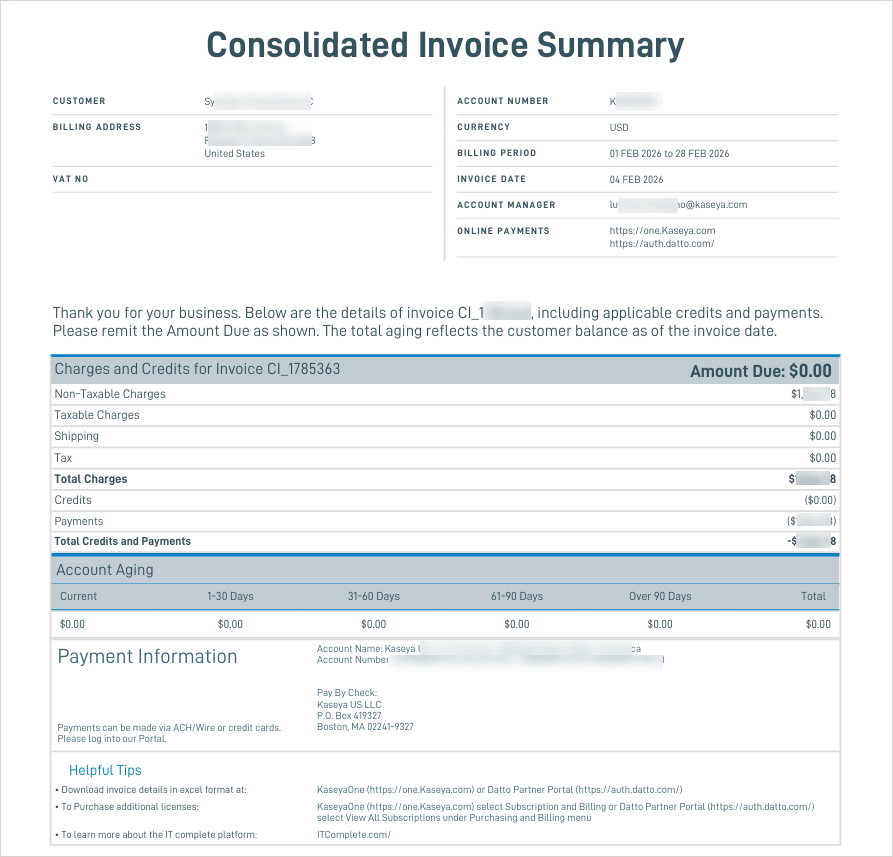
The first page of the consolidated invoice contains the following information:
-
Your customer name and billing address.
-
Your account number, billing currency, billing period, invoice date, account manager email address, and links to KaseyaOne and the Datto Partner Portal for online payments.
-
The total amount due for the invoice, followed by a high-level breakdown of non-taxable charges, taxable charges, shipping, and tax, and then a summary of all credits and payments applied to the invoice.
-
Your account aging balance as of the invoice date, broken into columns: current, 1–30 days, 31–60 days, 61–90 days, over 90 days, and total outstanding balance.
-
Payment information, including banking details for ACH/wire payments and links to pay online via KaseyaOne or the Datto Partner Portal.
Amount due summary
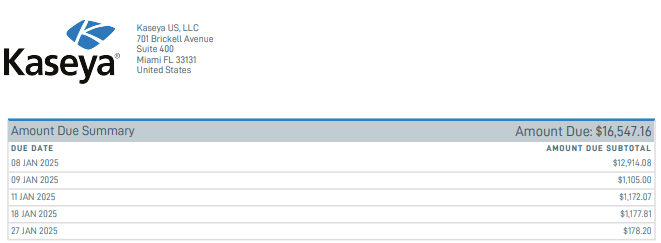
The amount due summary provides a breakdown of the total amount due by the individual due dates of the child invoices that make up the consolidated invoice. Because child invoices can have different due dates, this section helps you identify when each portion of your balance is payable.
Credits and payments
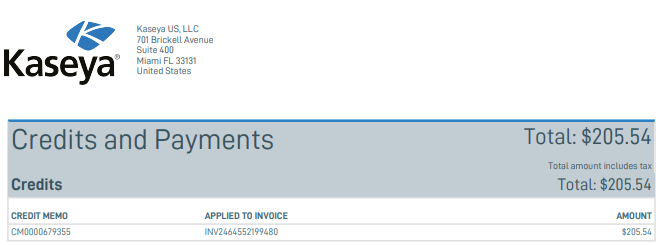
This section shows any credits and payments applied to this consolidated invoice.
NOTE Only the credits and payments applied to child invoices within this specific consolidated invoice display in this section. To view all credits and payments on your account, go to the transaction history section of the billing portal. Refer to Review transaction history.
-
For credits, each entry shows the amount and identifies the specific child invoice number to which the credit was applied.
-
For payments each entry shows the payment date, description, and amount.

Charges
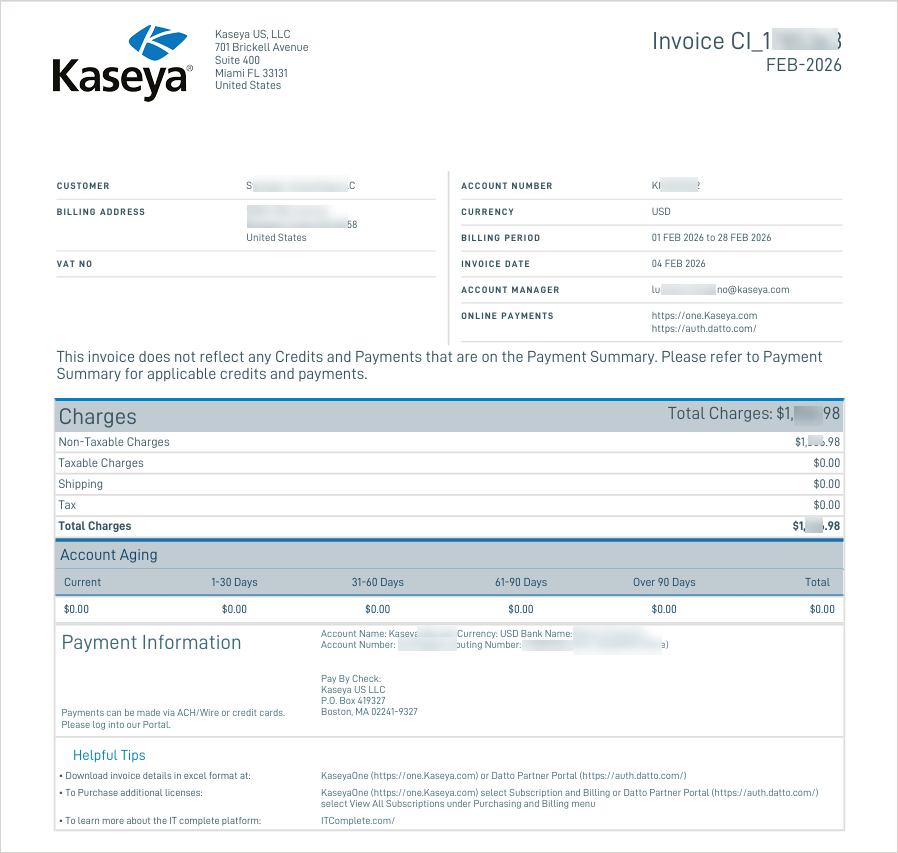
The charges page looks similar to the consolidated invoice summary page but shows only the charges incurred for the billing period. Credits and payments are not shown here.
Summary charges by category
The summary charges by category table shows how your total spend is distributed across the categories of services you purchased. Example categories include IT Operations and Unified RMM. The amounts in this table make up your total invoice charges.
EXAMPLE For this invoice, IT Operations accounts for $443.28 of the total spend, and Unified RMM accounts for $1,123.70.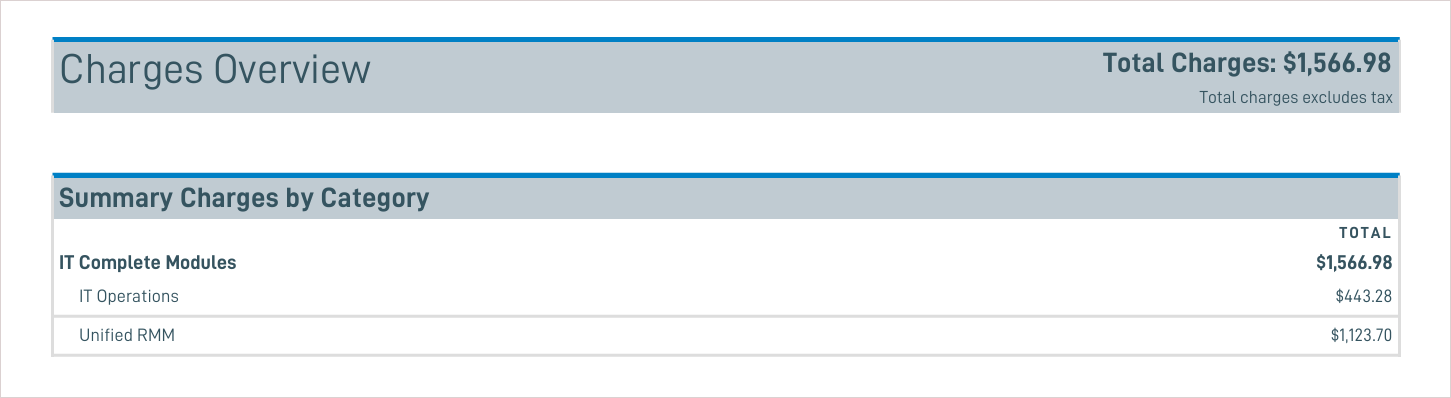
Detailed charges by category
The detailed charges by category section shows a breakdown of your spend within each category. Each category lists the individual line items, the service period each line item covers, the quantity billed, the item rate, and the item total.
How line items appear depends on the billing method for that product.
EXAMPLE Billing for Unified RMM is based on the CMQ agreed upon at the time of purchase, plus any variable usage above that amount. If your CMQ is 600 licenses and you used 661 during the prior service period, your invoice shows two line items: one for the CMQ (quantity of 600) and one for variable monthly usage (quantity of 61). If your usage is at or below the CMQ (for example, 595) your invoice shows only the CMQ line item and no additional usage charges.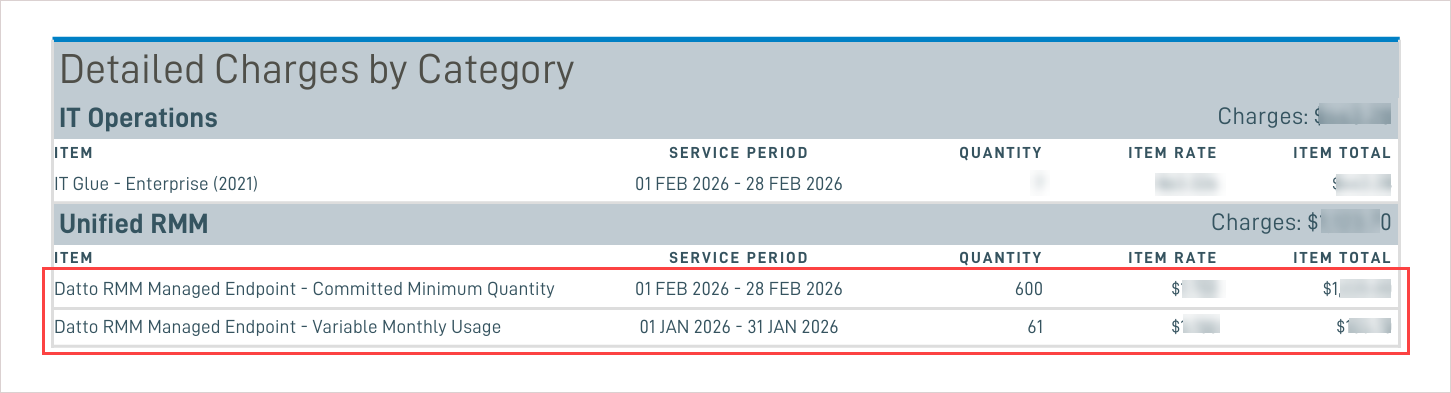
EXAMPLE Billing for IT Glue is based on your usage during the service period. When you purchase IT Glue, it appears as a line item on your invoice. If you later add more licenses through the Kaseya Store, each additional purchase appears as its own separate line item on future invoices. This means your invoice shows one line for the original purchase and separate lines for any subsequent purchases.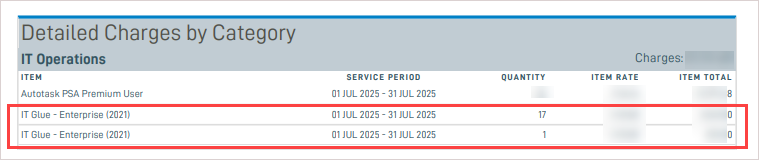
Details per organization
The details per organization section is informational only and is not part of your invoice charges. It lists your end clients alongside the services they are using and the cost of those services to each client to help you with cost allocation. The totals in this section do not contribute to your amount due. Your total charges are driven by the amounts in the charges by category section only.
This section shows end-client usage information only for services that support this capability. Not all services are represented here.
EXAMPLE If you purchased IT Glue licenses, the charge appears in the charges by category section. Because IT Glue licenses are not tied to a specific end client, they do not appear in the details per organization section. As another example, if you purchased 100 licenses of SaaS Protection but are using only 80 for your end clients, the charges by category section shows 100 licenses billed, while the details per organization section shows only 80 allocated across your clients.
Download invoice details
Line-item details for any invoice are available for download in Excel format.
Download from KaseyaOne
-
Click Subscriptions & Billing > View and Pay Invoices in the left navigation menu. The Invoices page opens.
-
Locate the invoice in the Open or Paid in Full section.
-
Click Excel in the Details column for that invoice. The file downloads.
Download from Datto Partner Portal
-
Go to the Purchasing and Billing menu and click View and Pay Invoices or Pay Bills.
-
In the billing portal, select Billing > Invoices from the left navigation menu.
-
On the Invoices page, locate the invoice in the Open or Paid in Full section.
-
Click Excel in the Details column for that invoice. The file downloads.


