Accessing KaseyaOne
If you're new to KaseyaOne and are logging in for the first time, see Activate your account. Otherwise, log in as described in Log in to KaseyaOne.
How to...
 Activate your account
When your KaseyaOne user account is added, you receive either a Welcome to KaseyaOne email or a Welcome to Kaseya 365 email from noreply@kaseya.net with your username, company name, and an activation link.
NOTE If you did not receive a welcome email, or the activation link in your email has expired, ask your KaseyaOne administrator to Resend the invitation email.
Once you receive your welcome email, set up your account in KaseyaOne as follows:
- Click Activate Your Account in the welcome email.
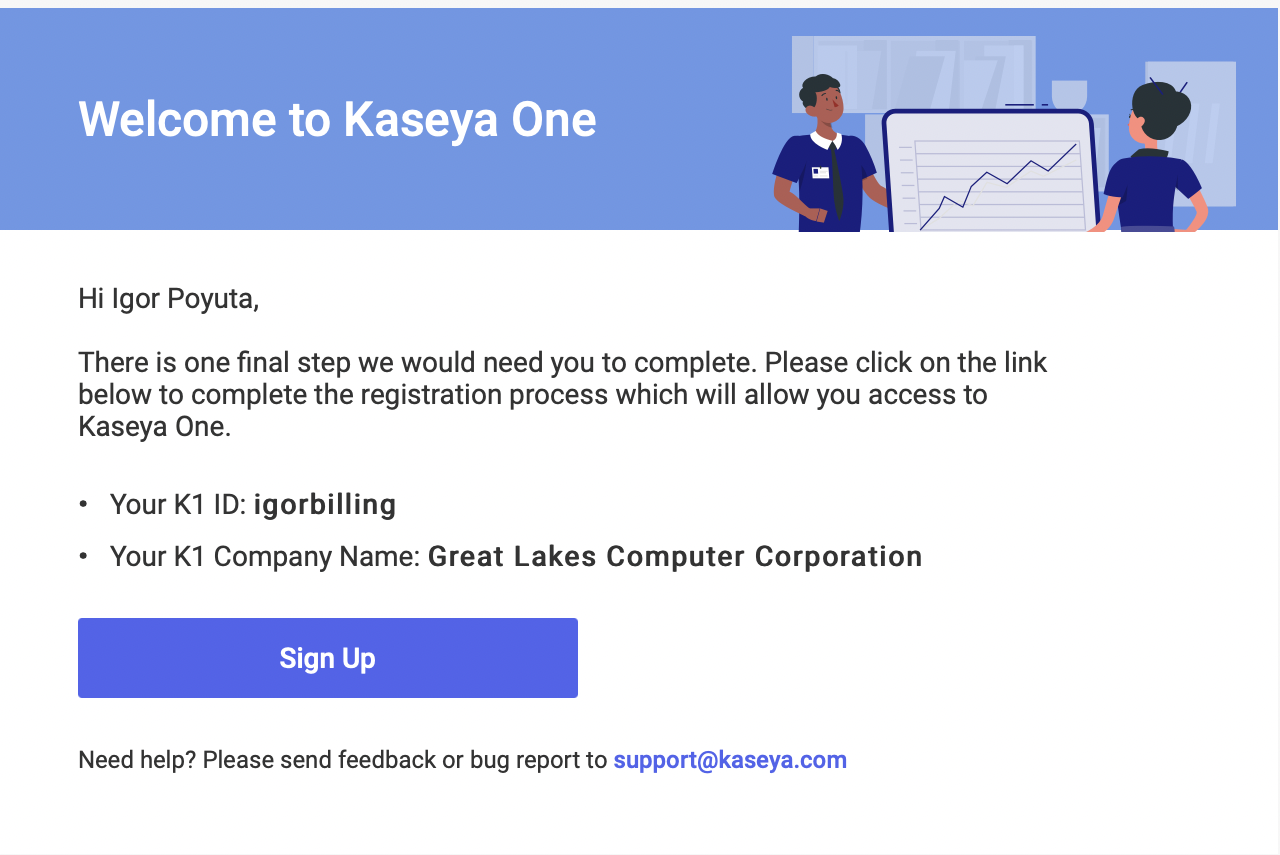
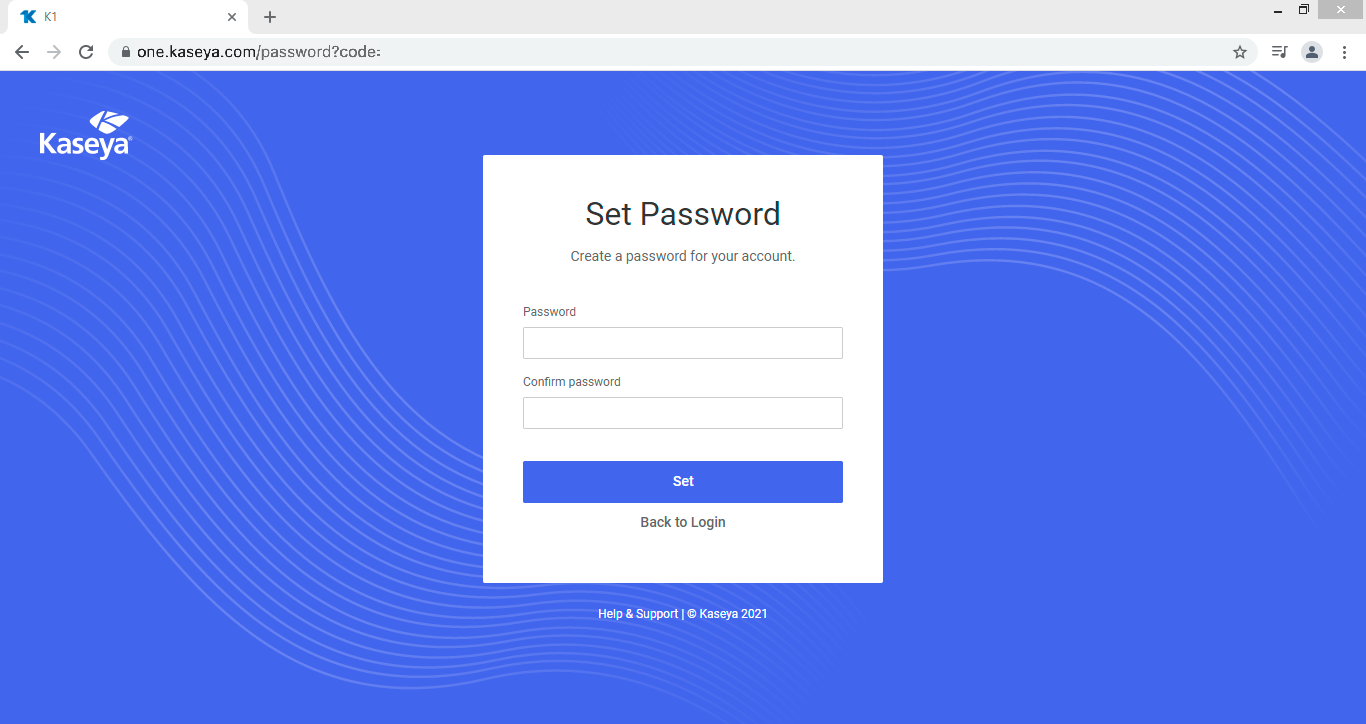
- You are redirected to KaseyaOne and prompted to set up your password.
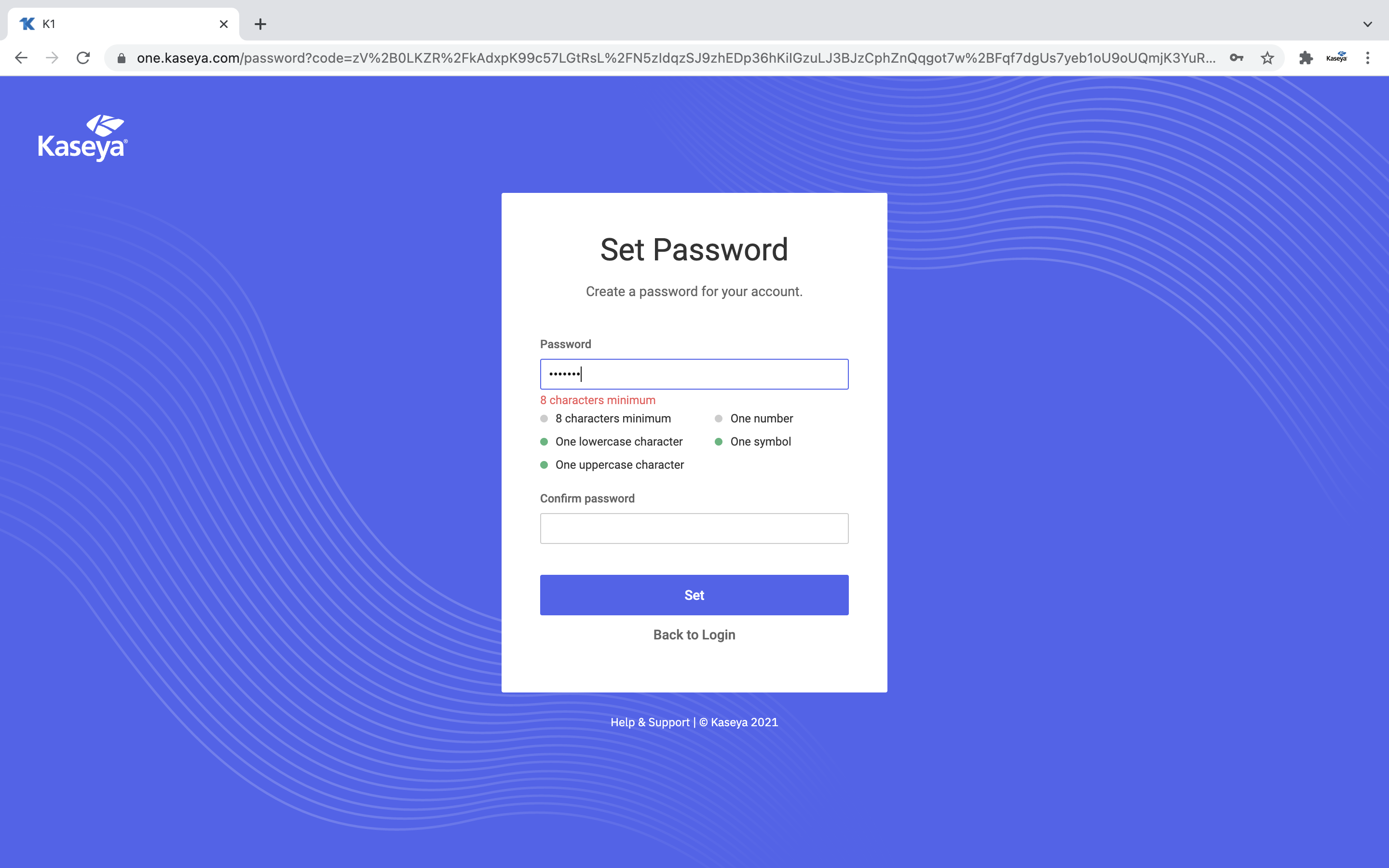
- Enter and confirm a strong password (8 characters, one lower, one upper, one number, one symbol).
- Click Next to save your password.
-
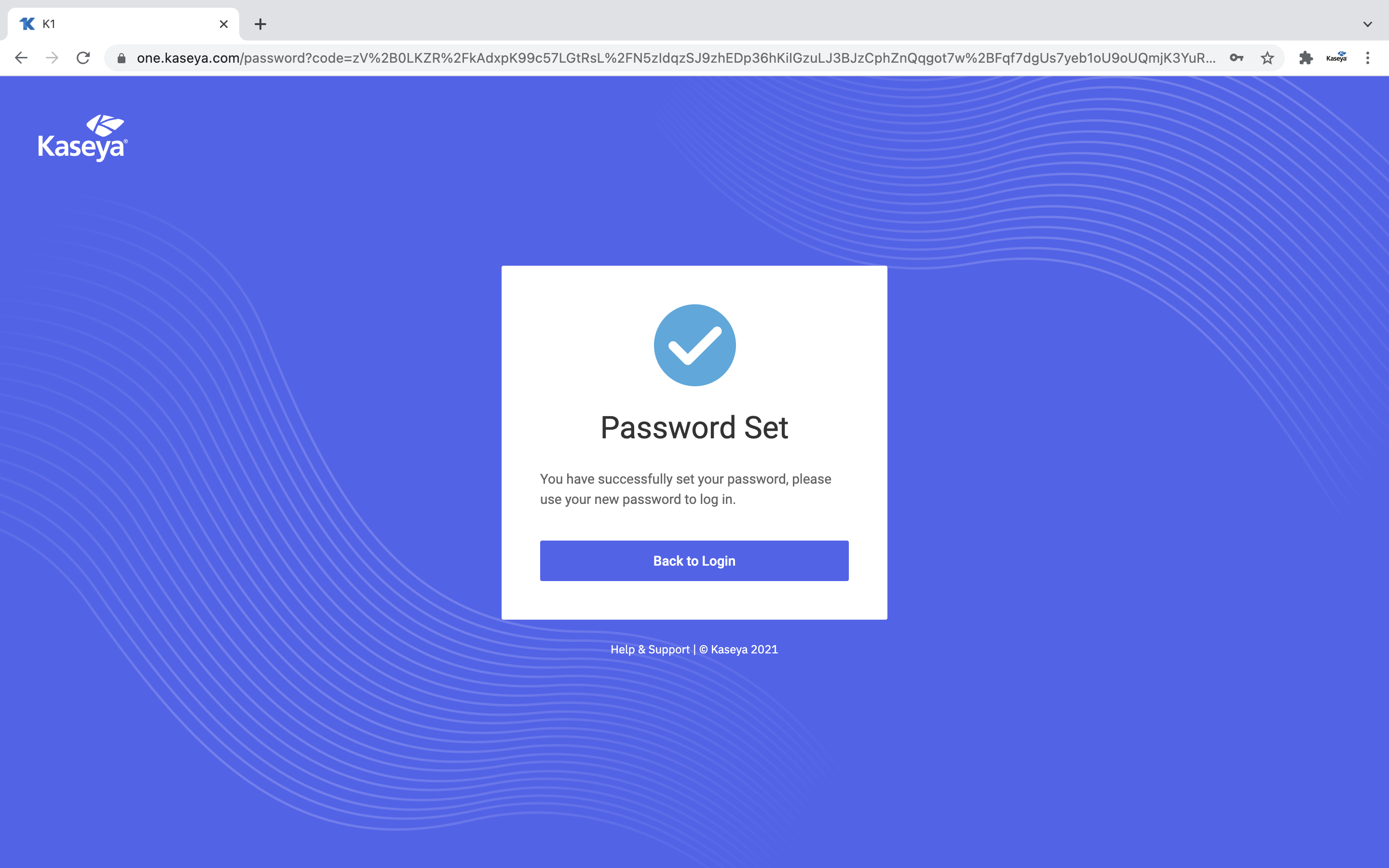
Click Back to Login to return to the KaseyaOne login page.
-
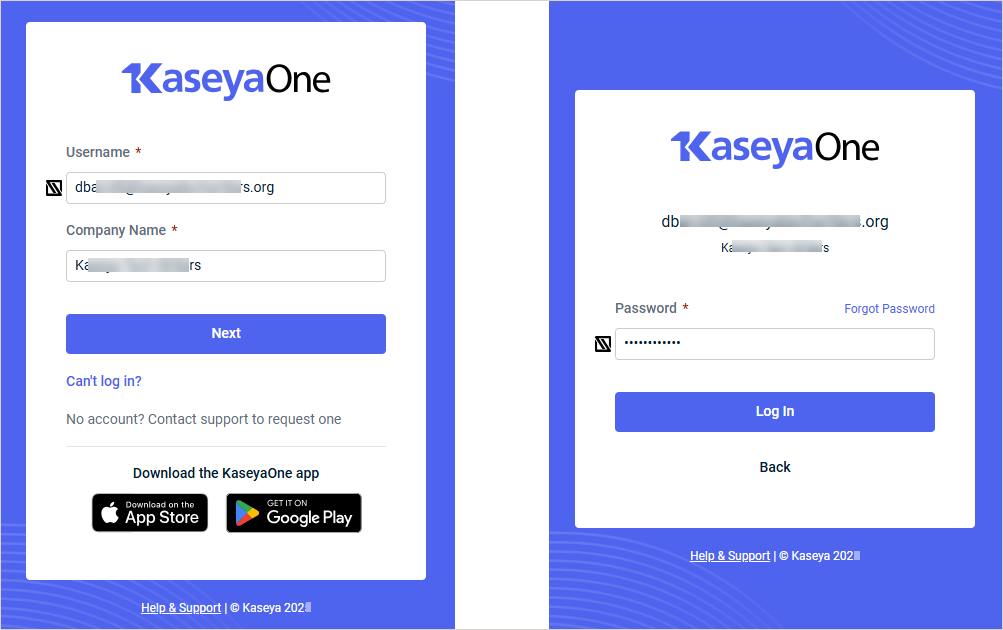
Log in to KaseyaOne with your username, new password, and company name.
- Enter the Username and Company Name for your KaseyaOne account.
- Click Next.
- Enter the Password for your KaseyaOne account.
- Click Log In.
-
The Your Security Matters page opens. Use these steps to configure two-factor authentication:
- On the Your Security Matters page, click Get Started.
- On your mobile device, download the authenticator application of your choice. For recommended authenticator apps, refer to System requirements.
- Add your KaseyaOne account to the authenticator app. You can either:
- Scan the QR code displayed in KaseyaOne, or
- Manually enter the alphanumeric code displayed in the authenticator application. You can view the code by clicking the Can't Scan link in step 2 on the Set Up 2FA page.
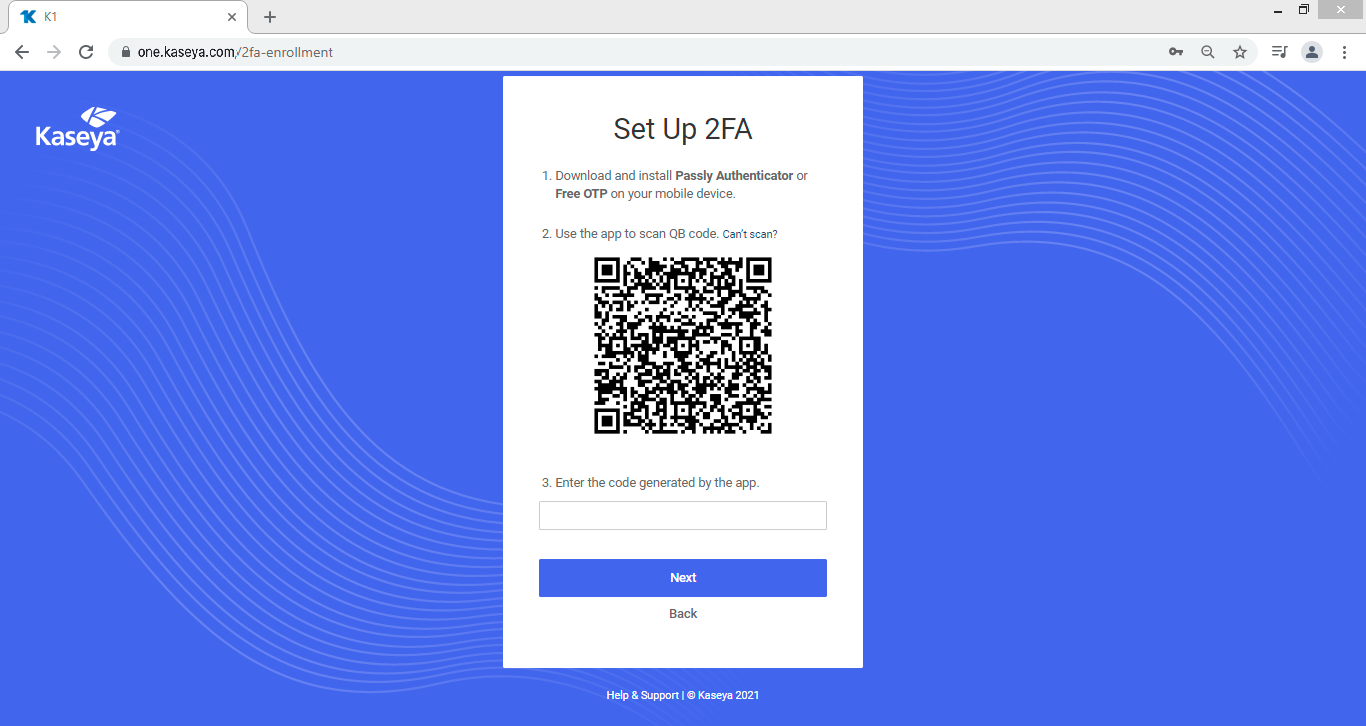
IMPORTANT If you are using Microsoft's Authenticator app, we recommend that you use the manual option to avoid overwriting an existing 2FA account. This is a known Microsoft bug.
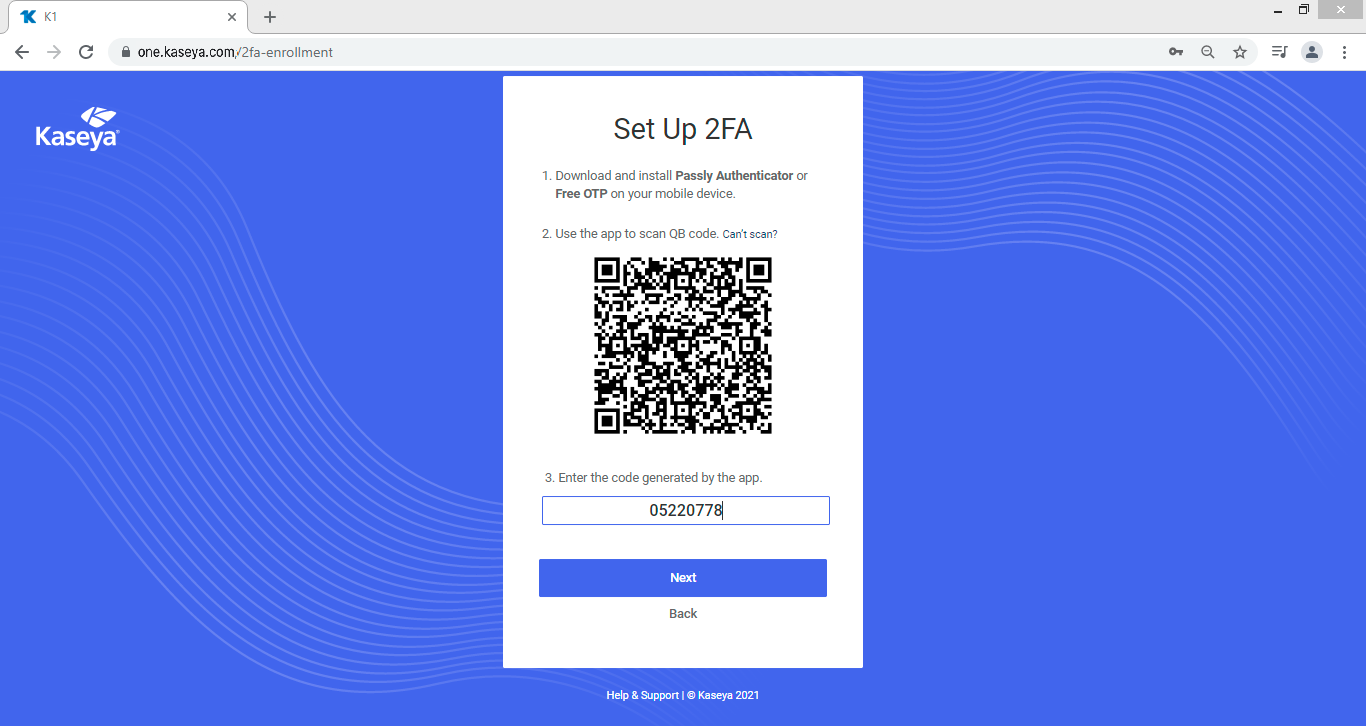
- Enter the authentication code generated by your authenticator app into the Authentication Code field (step 3 on the Set Up 2FA page) and click Next. The authentication code must be entered within 30 seconds.
-
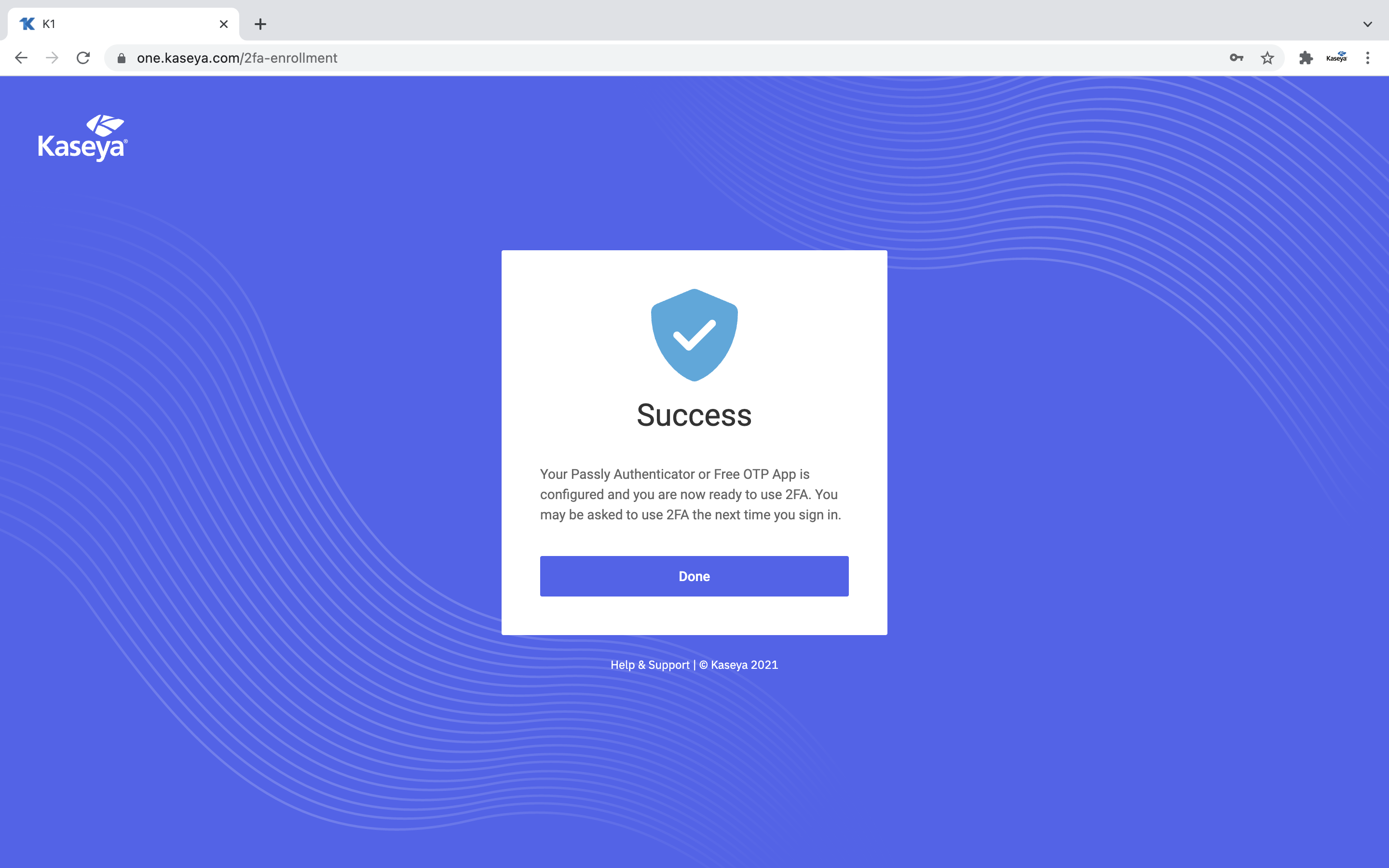
The Success page confirms that your 2FA app is configured. Click Done to access the KaseyaOne home page dashboard.
Log in to KaseyaOne
To access KaseyaOne, you need your company name, username, and password.
When your KaseyaOne user account was added, you received either a Welcome to KaseyaOne email or a Welcome to Kaseya 365 email from noreply@kaseya.net with your username and company name. If you've forgotten your username, company name, or password, see Recovering your KaseyaOne login credentials.
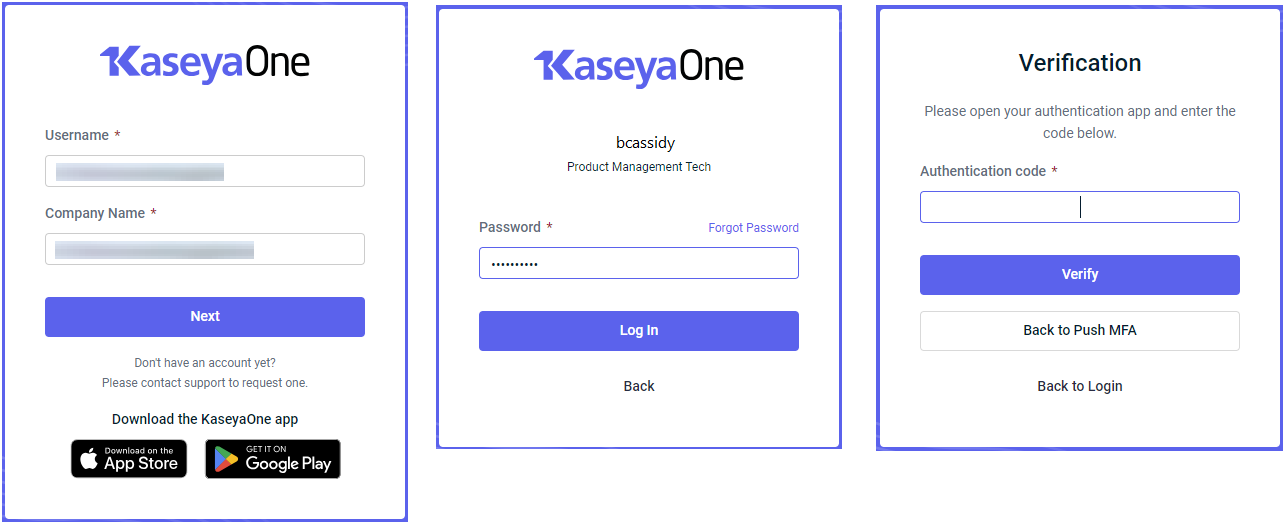
Instructions follow on how to log in to KaseyaOne from the KaseyaOne login page:
NOTE If logging in for the first time, additional steps apply. Refer to Activate your account for details.
-
Navigate to https://one.kaseya.com/.
-
Enter the Username and Company Name for your KaseyaOne account.
-
Click Next.
-
Enter the Password for your KaseyaOne account.
-
Click Log In.
-
Enter your two-factor authentication (2FA) token when prompted.
-
Click Verify.
-
After successful verification, you are logged in to KaseyaOne.
Troubleshoot KaseyaOne login issues
Instructions follow on how to request your username, company name, or a password reset from the KaseyaOne login page should you forget one of them when logging in to your account.
Request username from login page
- On the KaseyaOne login page, click Can't Log In?

- Select Forgot username.
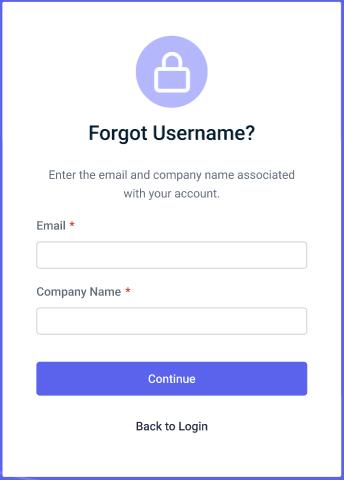
- Enter the Email and Company name associated with your account and then click Continue.

- You will receive an email with further instructions if there is an account associated with your email and company name.

Request company name from login page
- On the KaseyaOne log in page, click Can't Log In?
- Select Forgot company name.

- Enter the Email associated with your account and then click Continue.
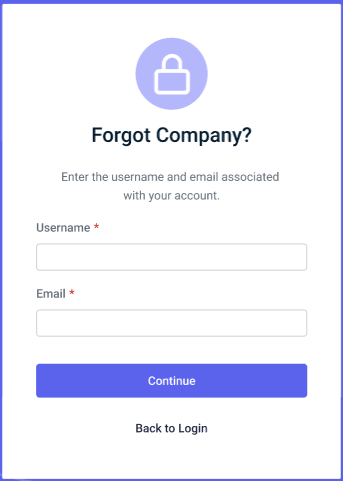
- You will receive an email with further instructions if there is an account associated with your email.

Request password from login page
- On the KaseyaOne log in page, click Can't Log In?
- Select Forgot password.
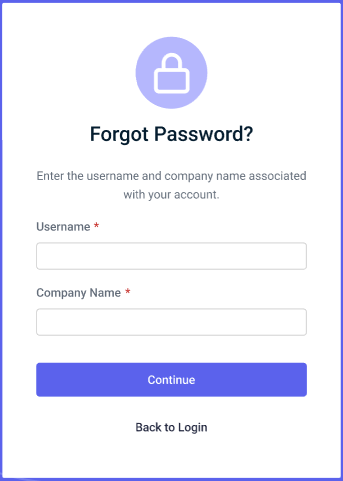
- Enter the Username and Company name associated with your account and then click Continue.

- You will receive an email with further instructions if there is an account associated with your email and company name.

You should receive the password reset email in a few minutes. If you did not receive it:
-
Ensure that it did not get caught in your spam filter/junk folder or automatically get moved to a folder by a rule.
-
Make sure you entered your company name correctly when submitting the password reset request. To retrieve your company name, see What is my company name?


