View purchases
NAVIGATION Kaseya Store > My Account > Purchases
PERMISSIONS Admin or Billing and Purchasing role
This article explains how to manage your purchases by carrying out the following subscription management tasks in Kaseya Store:
 Review purchase history
-
Navigate to My Account > Purchases> Purchase History in Kaseya Store.
-
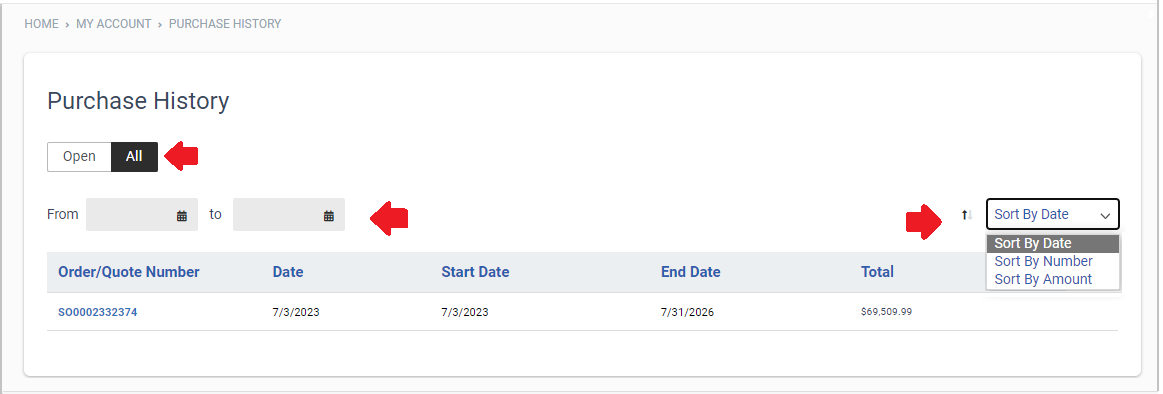
On the Purchase History page that opens, a list of all your current and past purchase orders appears.
Click Open to view only your open purchase orders.
Click All to view all your purchase orders
-
Filter the purchase history list by entering a from/to date range and selecting a currency or sorting option.
-
Click an Order/Quote Number to open and review the details of a purchase order.
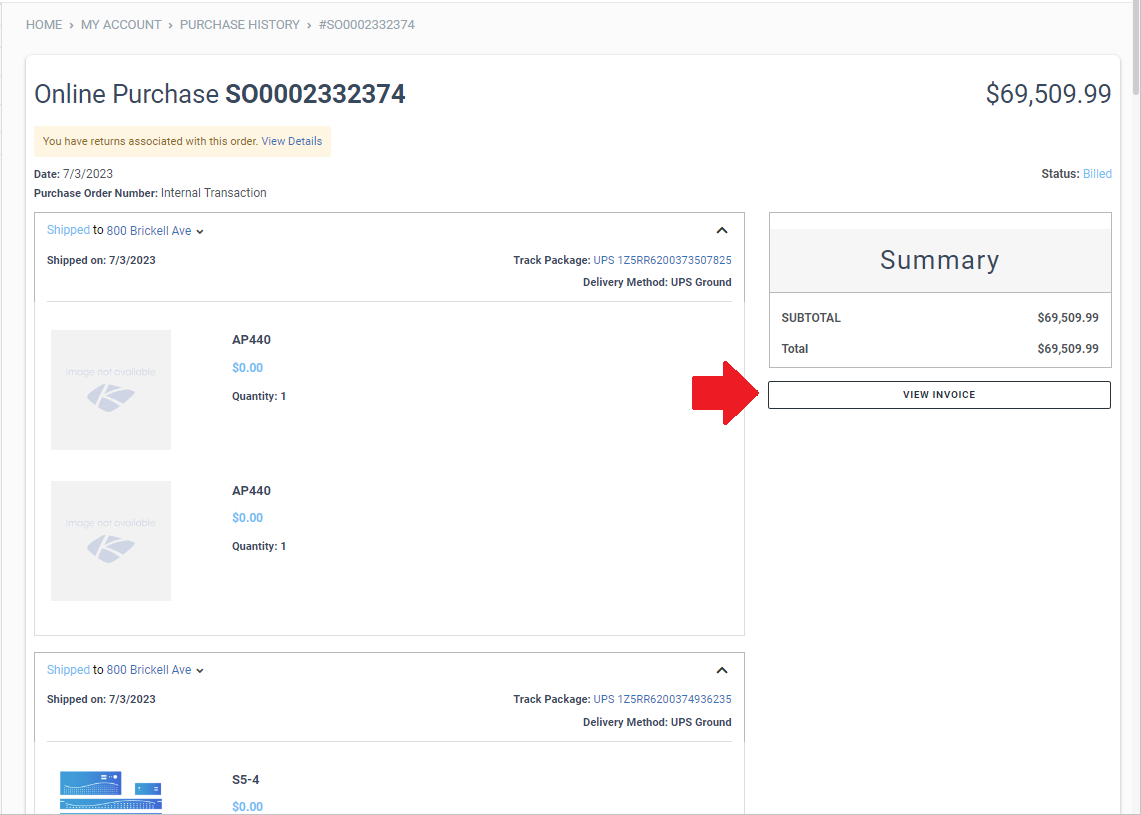
View purchase order and download invoice (PDF format)
-
Navigate to My Account > Purchases> Purchase History in Kaseya Store.
-
On the Purchase History page that opens, search for the purchase order record that you want. For example:
Click All to view all your purchase orders.
Filter the purchase history list by entering a from/to date range and selecting a currency or sorting option
-
Click the Order/Quote Number to open and review the details of the purchase order.
-
Click View Invoice to open and review the associated invoice, then on the Invoice # page that opens:
Click Download as PDF to download a copy of the invoice in PDF format.
Click Make a Payment to make a payment. Refer to Pay a bill.
Note that this option is available only where the invoice status is Open and there is an outstanding balance. If the invoice status is Paid in Full, this option is not available.


