Cancel a subscription
 Security and navigation
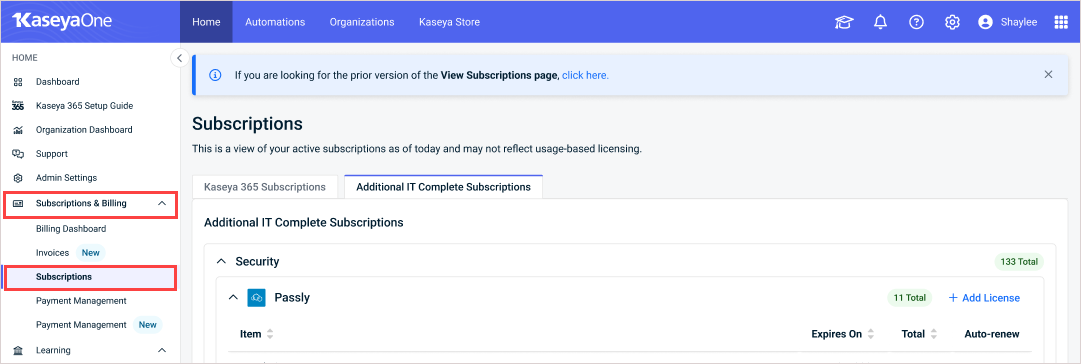
NAVIGATION Home > Subscriptions & Billing > Subscriptions
PERMISSIONS Admin or Billing and Purchasing role
Procedures vary by subscription type. See these topics for details:
Cancel a usage-based subscription
Contact your account manager to cancel your subscription. For contact information, see the Your Kaseya team widget at the bottom of the left navigation menu in KaseyaOne.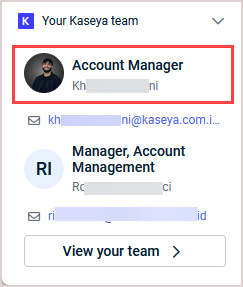
Cancel a term-based subscription
Contact your account manager to cancel your subscription. For contact information, see the Your Kaseya team widget at the bottom of the left navigation menu in KaseyaOne.
NOTE You can also submit a request to opt-out of auto-renewal as described in Submit a request to opt-out of auto-renewal for your Kaseya 365 subscription or Submit a request to opt-out of auto-renewal for your IT Complete term-based subscription. Opting out simply disables auto-renewal for the subscription. The subscription remains active. To cancel the subscription, contact your account manager.
Cancel a month-to-month subscription
You can cancel your month-to month (Evergreen) subscription by opting out of auto-renewal. See the procedure below to opt-out. After opting out:
-
The subscription is stopped and no longer displays on the Subscriptions page in KaseyaOne (as the subscription is no longer active).
-
If you sent the opt-out request on or before the 15th of the month, the subscription is stopped on the last day of that month.
-
If you sent the opt-out request after the 15th of the month, the subscription is stopped on the last day of the following month.
Use this procedure to submit a request to opt-out of your month-to-month subscription.
- Navigate to the Subscriptions page in KaseyaOne.
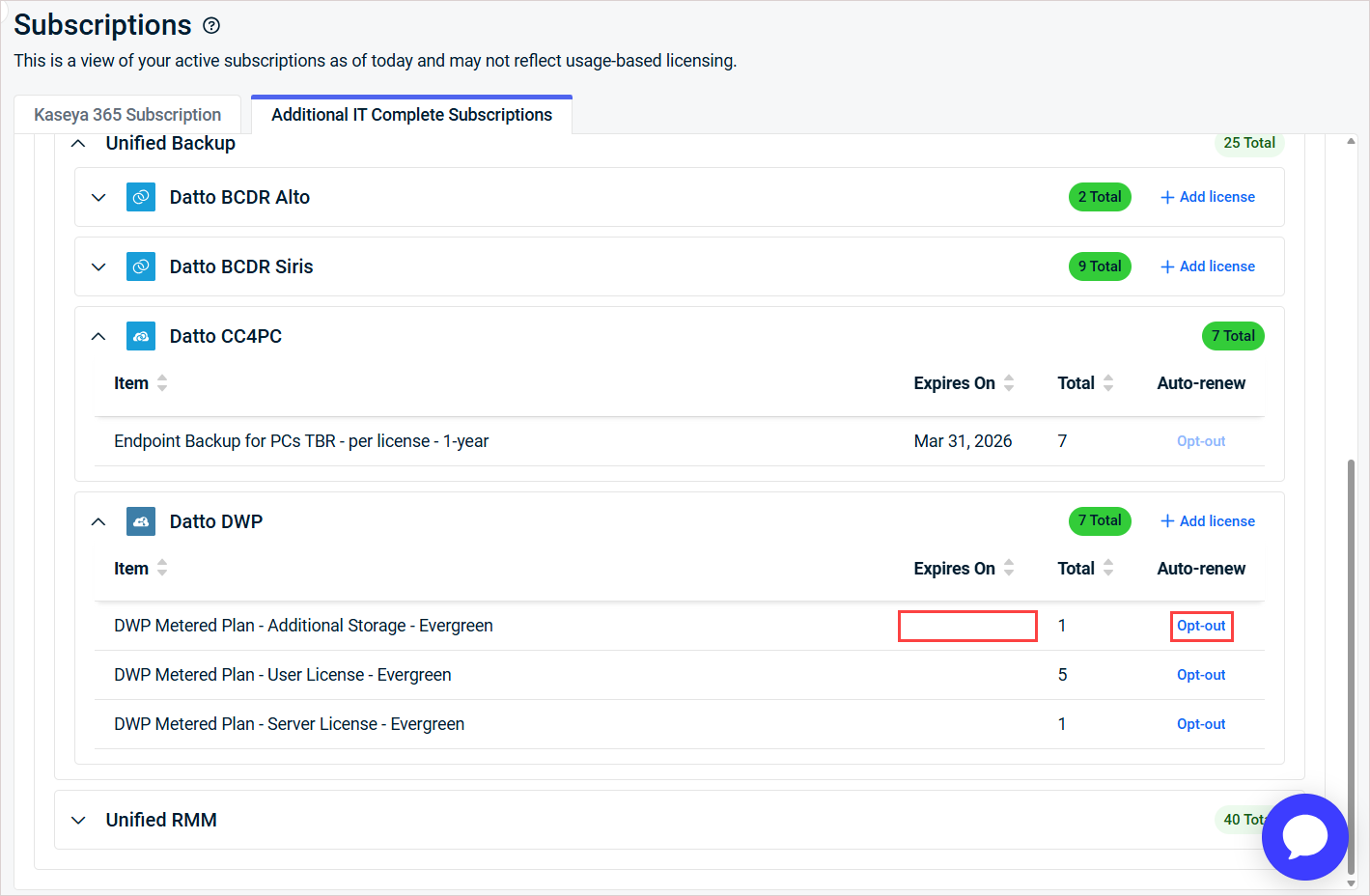
- On the Additional IT Complete Subscriptions tab, locate the month-to-month subscription and click its Opt-out link.
NOTE A subscription is month-to-month if no date displays in the Expires On column.
- On the Subscription Management page that opens in Kaseya Store, select the module where you want to cancel subscriptions, then select the check box next to each subscription you want to cancel.
-
Click the Opt-Out of Month-to-Month button and on the Manage Subscriptions Review page that opens:
Select a reason for the cancellation from the Reason for Opt-Out drop-down list.
(Optional) Enter a comment in the Comments box.
Click Submit Request.
-
Click Confirm when presented with the following message:
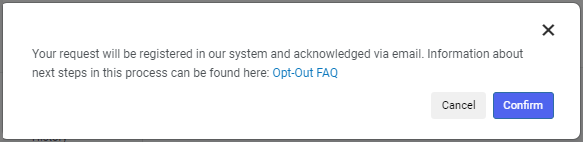
You will receive an acknowledgment email followed by a confirmation email once the request has been processed.


