Managing user roles
NAVIGATION Header > Admin Settings > Role Management
PERMISSIONS Admin role
A user's role determines what they can access in KaseyaOne and what actions they can perform. User roles enable administrators to quickly assign the right level of access, granting access to the features a user needs while restricting access to other areas.
When adding a new user account, you assign a role to that user. Each user must have exactly one role assigned. KaseyaOne includes a set of predefined system roles, and you can also create customized roles tailored to your organization's needs.
System roles
KaseyaOne includes the following predefined system roles, which you can use to quickly start adding users. System roles cannot be modified or deleted.
| Role | Description | Notes |
|---|---|---|
| Admin | Full platform access and user management. Users with this role have access to all areas of KaseyaOne, including the Organization Dashboard, Admin Settings, and Kaseya Professional Services pages. They can add and edit all users, assign user roles, create Unified Login integrations, manage billing information, request subscriptions and licenses, view invoice history, and view all company support tickets. They can also navigate to Kaseya Store, Kaseya University, Kaseya Community, and the Kaseya Merch Store from KaseyaOne. | |
| Billing and Purchasing | Financial access, invoices, and store management. Users with this role have access to the Organization Dashboard and Kaseya Professional Services pages. They can edit their own user information, manage billing information, request subscriptions and licenses, view invoice history, and view billing support tickets. They can also navigate to Kaseya Store, Kaseya University, Kaseya Community, and the Kaseya Merch Store from KaseyaOne. | Users with this role cannot add or edit other users. |
| User | Support portal access and reporting. Users with this role have access to the Kaseya Professional Services page. They can edit their own user information and view support tickets they submitted or were copied on. They can also navigate to Kaseya University, Kaseya Community, and the Kaseya Merch Store from KaseyaOne. | Users with this role cannot add or edit other users or access subscriptions and billing information. |
| Co-Managed | Access to assigned modules only. Users with this role have limited access to KaseyaOne. They do not see My Account Team information and can see only the My Modules section on the home page. They can edit their own user information and navigate to Kaseya University from KaseyaOne. | Users with this role cannot view or create support tickets, add or edit other users, or access subscriptions and billing information. On the Support page, they see only the following message: Need help? If you have any issues with using KaseyaOne please contact your administrator. |
Customized roles
If you need more granular control over access, you can create customized roles tailored to your organization's needs. Instead of relying only on predefined system roles, you can adjust permissions based on specific responsibilities — for example, separating financial access from administrative capabilities, granting support visibility without full admin control, or limiting administrative scope while keeping elevated permissions for key functions.
To create a customized role, you select a system role as the base. The new role starts with the base role's permissions, and you then restrict access by disabling individual permissions. A customized role can only reduce the access of its base role, it can never grant a permission the base role does not include.
Only the permissions available to the selected base role are shown. At least one qualifying permission must remain enabled. The system prevents saving a customized role that is identical to its base role or that has all permissions disabled. Refer to Add a customized role for detailed steps.
NOTE A maximum of 50 user roles are supported: the four system roles and up to 46 customized roles.
Role Management page
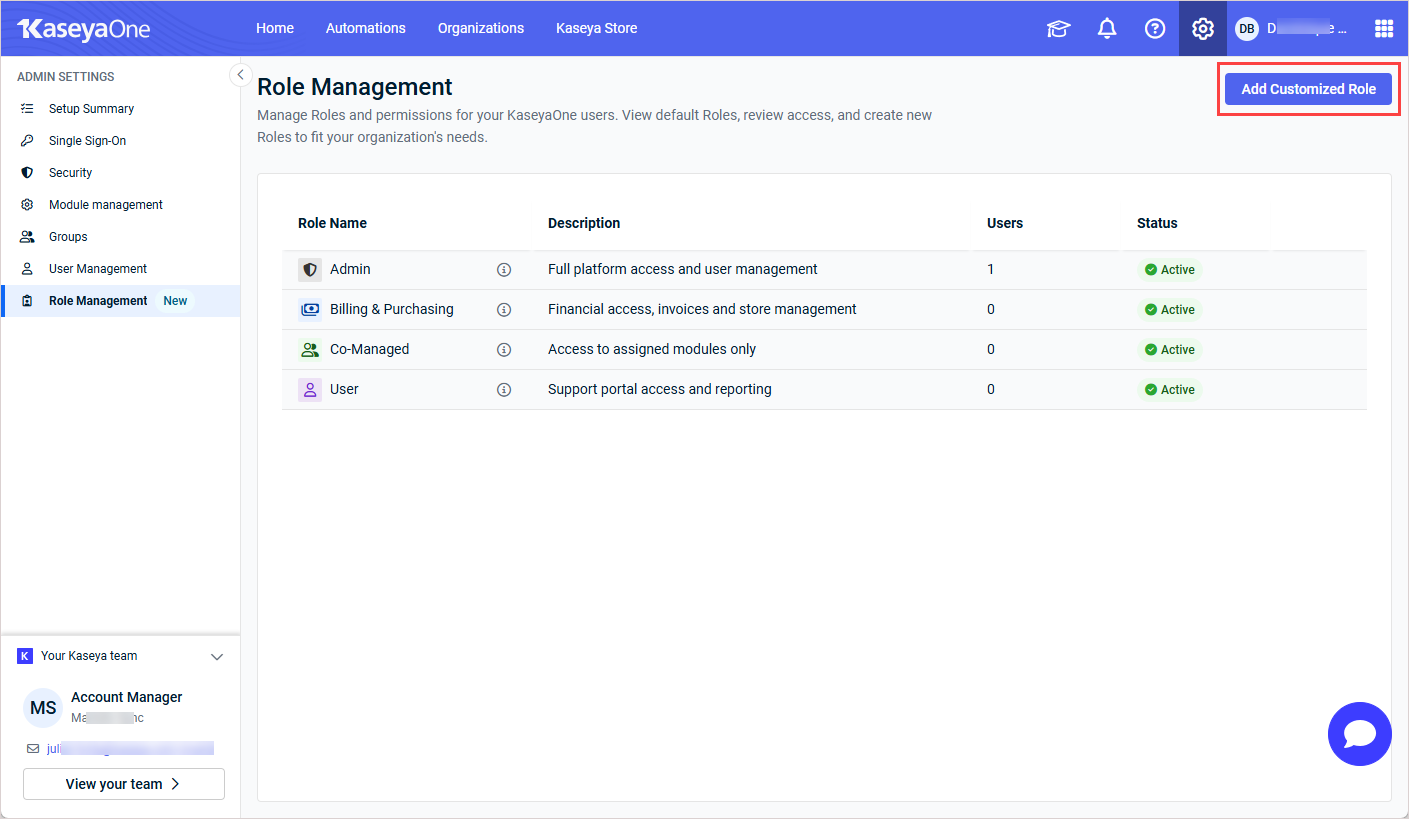
The Role Management page is where you view and manage roles and permissions for your KaseyaOne users. The page lists all roles available in your organization, including the predefined system roles and any customized roles that have been created.
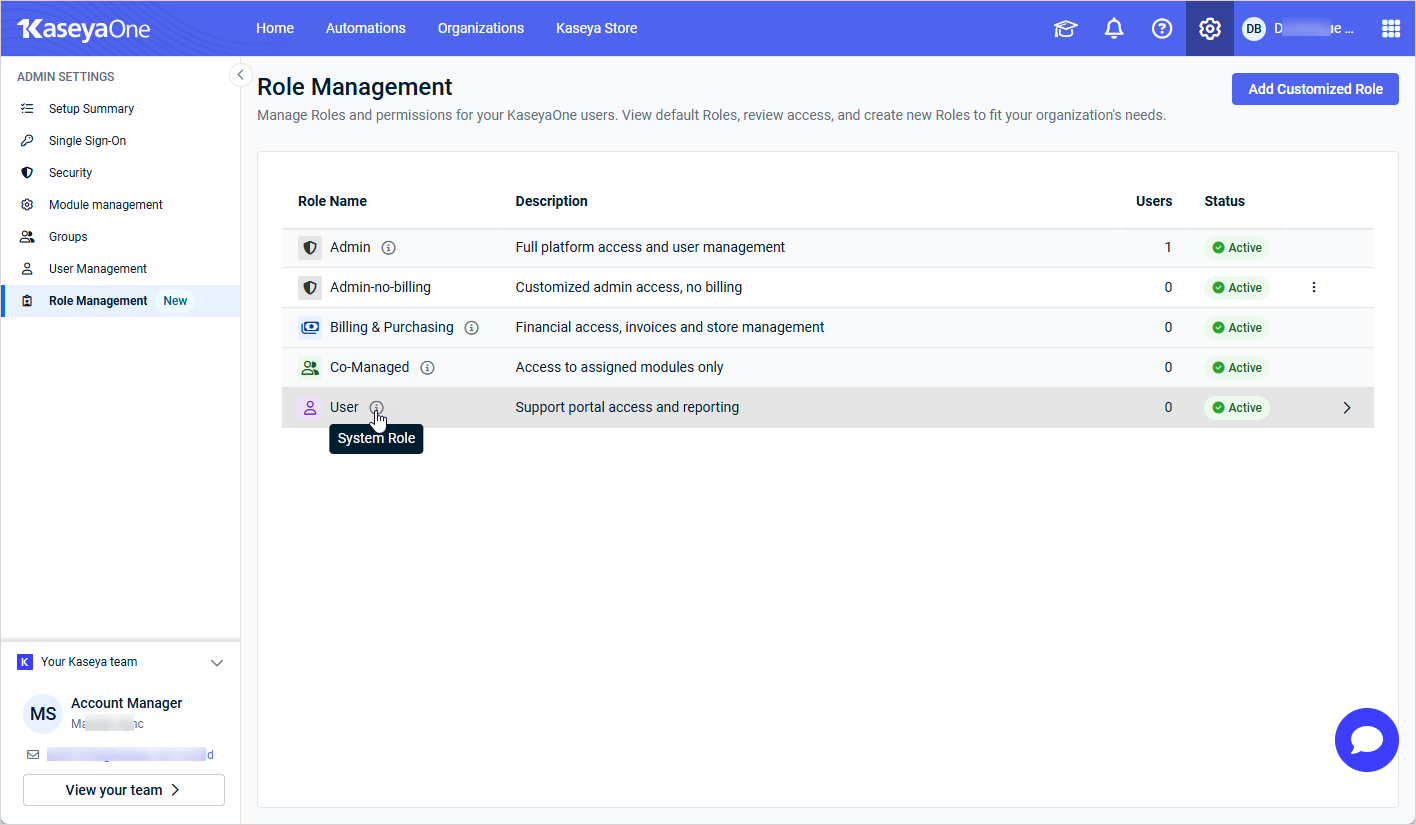
Following is a description of the fields and controls available on the Role Management page.
| Field / Control | Description |
|---|---|
| Add Customized Role | Click this button, located in the upper-right corner of the page, to open the Add Customized Role pane. Refer to Add a customized role. |
| Role icon | Icon associated with the role. For customized roles, the icon reflects the system role on which the role was based. |
| Role Name | Name of the role. |
 information icon |
Indicates that this is a system role. |
| Description | Brief description of the role's access level and purpose. |
| Users | Number of users currently assigned to this role.
NOTE You must remove all user assignments from a customized role before you can delete it. |
| Status | Current status of the role: Active (the role can be assigned to users) or Locked (the role has been locked and cannot be assigned to new users).
NOTE System roles cannot be modified or deleted and are always in Active status. |
 greater than symbol |
Click the symbol, or anywhere in the row, to open the Role Details pane. Refer to Role Details pane. |
 More menu |
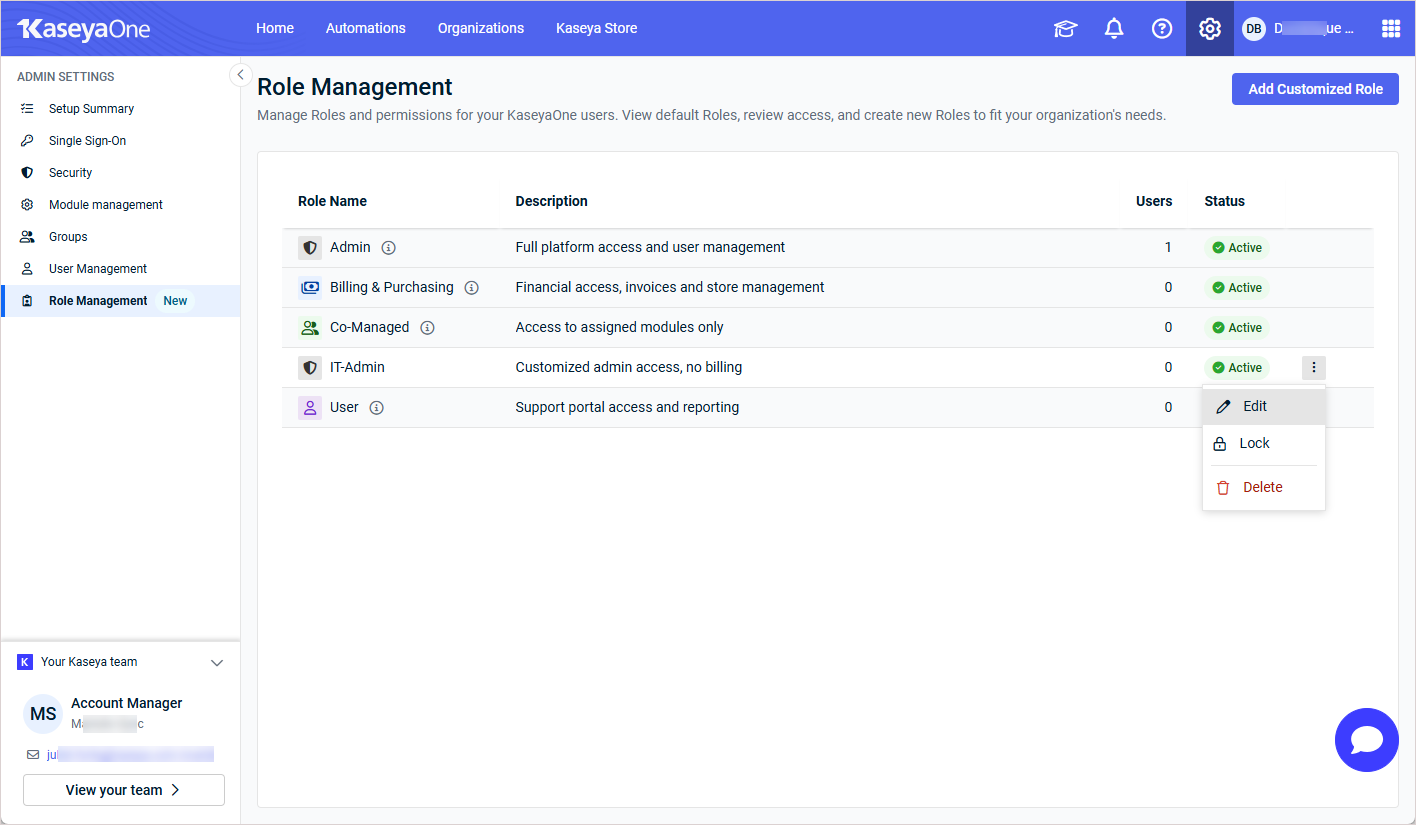
Click the More menu (vertical ellipsis) on a customized role row to access the following options: Edit, Lock (or Unlock if the role is locked), and Delete. This menu does not appear for system roles.
NOTE Users already assigned to a locked role retain their current access until their role is changed. Refer to Lock or unlock a customized role. |
Role Details pane
Click any role row to open the Role Details pane. The pane displays the full list of permissions configured for the role, grouped by capability area, as well as the users currently assigned to the role.
The Users section lists the names of users currently assigned to this role, along with the total user count. The list is ordered alphabetically by last name, and shows up to 20 users. If there are over 20 users, click View more below to open the Role users dialog to see a searchable list of all users.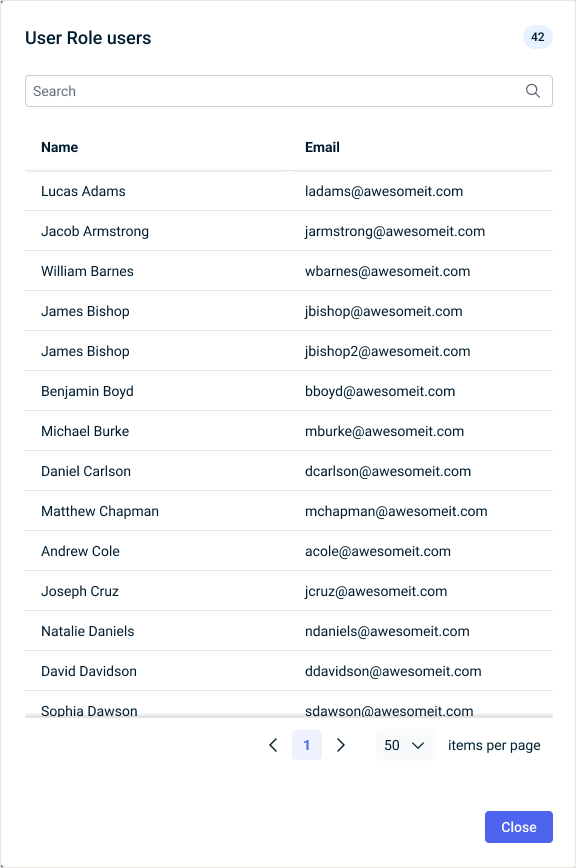
The content and available actions in the pane differ depending on whether you are viewing a system role or a customized role.
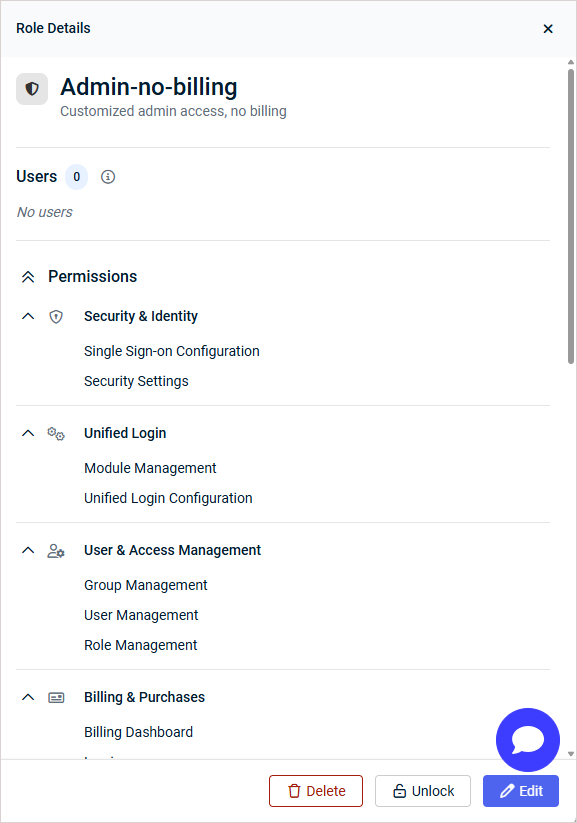
EXAMPLE The Role Details pane for the Admin role displays the complete set of permissions included in this role. Because Admin is a system role, the pane is read-only — no actions are available. For customized roles based on Admin, the pane includes Edit, Lock, and Delete buttons at the bottom.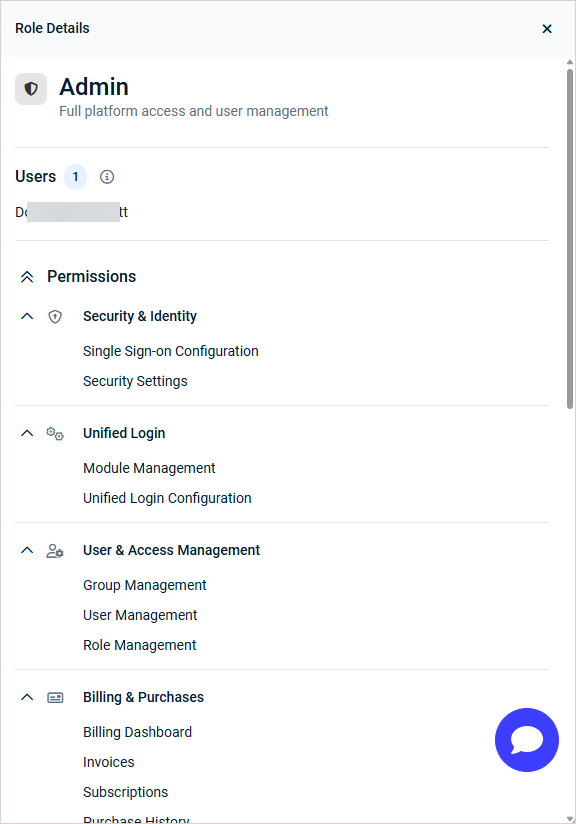
Admin Role Details pane
Following is a description of the Role Details pane fields and controls for the Admin role:
| Field / Control | Description |
|---|---|
| Role name and description | Displays the role name and a brief description of the role's purpose. |
| Users |
Lists the names of users currently assigned to this role, along with the total user count.
The list is ordered alphabetically by last name, and shows up to 20 users. If there are over 20 users, click View more below for a complete, searchable list. |
| Permissions |
Lists all permission groups and their individual permissions for this role. For the Admin role, all permission groups are enabled by default:
|
| Edit button | Available for customized roles based on Admin only. Click to open the Edit Customized Role pane. Refer to Edit a customized role. |
| Lock button | Available for customized roles based on Admin only, when not used in IdP SSO configuration. Click to lock the role. The role remains visible in the list but cannot be assigned to new users. Refer to Lock or unlock a customized role. |
| Delete button | Available for customized roles based on Admin only, when not used in IdP SSO configuration and no users are assigned. Click to permanently delete the role. This button is disabled if users are still assigned to the role. Refer to Delete a customized role. |
Billing and Purchasing Role Details pane
Following is a description of the Role Details pane fields and controls for the Billing and Purchasing role:
| Field / Control | Description |
|---|---|
| Role name and description | Displays the role name and a brief description of the role's purpose. |
| Users |
Lists the names of users currently assigned to this role, along with the total user count.
The list is ordered alphabetically by last name, and shows up to 20 users. If there are over 20 users, click View more below for a complete, searchable list. |
| Permissions |
Lists the permission groups enabled for the Billing and Purchasing role:
|
| Edit button | Available for customized roles based on Billing and Purchasing only. Click to open the Edit Customized Role pane. Refer to Edit a customized role. |
| Lock button | Available for customized roles based on Billing and Purchasing only, when not used in IdP SSO configuration. Click to lock the role. Refer to Lock or unlock a customized role. |
| Delete button | Available for customized roles based on Billing and Purchasing only, when not used in IdP SSO configuration and no users are assigned. Click to permanently delete the role. Refer to Delete a customized role. |
Co-Managed Role Details pane
Following is a description of the Role Details pane fields for the Co-Managed role:
NOTE The Co-Managed role cannot be customized.
| Field | Description |
|---|---|
| Role name and description | Displays the role name and a brief description of the role's purpose. |
| Users |
Lists the names of users currently assigned to this role, along with the total user count.
The list is ordered alphabetically by last name, and shows up to 20 users. If there are over 20 users, click View more below for a complete, searchable list. |
| Permissions | This role enables users to access assigned product modules only. It does not include access to KaseyaOne product features. To grant module access to users, see Managing KaseyaOne groups. |
User Role Details pane
Following is a description of the Role Details pane fields and controls for the User role:
| Field / Control | Description |
|---|---|
| Role name and description | Displays the role name and a brief description of the role's purpose. |
| Users |
Lists the names of users currently assigned to this role, along with the total user count.
The list is ordered alphabetically by last name, and shows up to 20 users. If there are over 20 users, click View more below for a complete, searchable list. |
| Permissions |
Lists the permission groups enabled for the User role:
|
| Edit button | Available for customized roles based on User only. Click to open the Edit Customized Role pane. Refer to Edit a customized role. |
| Lock button | Available for customized roles based on User only, when not used in IdP SSO configuration. Click to lock the role. Refer to Lock or unlock a customized role. |
| Delete button | Available for customized roles based on User only, when not used in IdP SSO configuration and no users are assigned. Click to permanently delete the role. Refer to Delete a customized role. |
How to...
 Add a customized role
To add a customized role, complete the following steps:
- On the Role Management page, click Add Customized Role in the upper-right corner. The Add Customized Role pane opens.
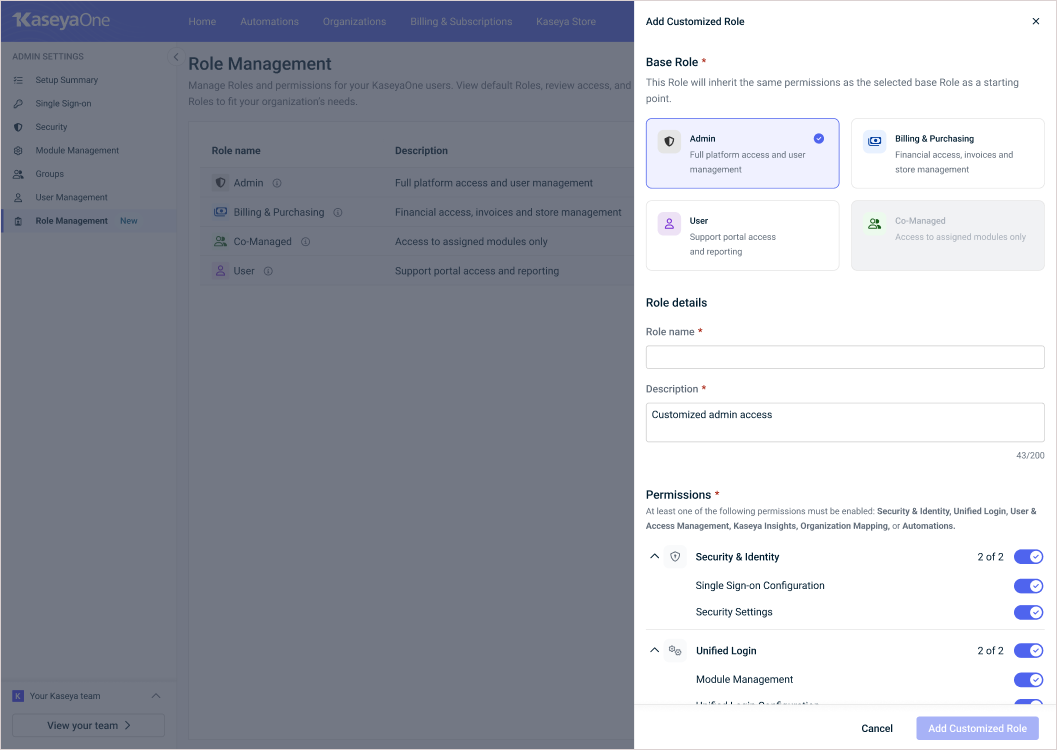
- Under Base Role, select the system role you want to use as the starting point for your customized role. The new role inherits all permissions from the selected base role.
NOTE The Co-Managed role cannot be customized.
- Under Role details, type a name for the role in the Role name field, then type a brief description in the Description field (up to 200 characters).
- Under Permissions, review the permission groups and individual toggles. Turn individual permission toggles off (or back on) to customize access for this role. Note the following:
- The new role starts with the base role's permissions, and you then restrict access by turning off permission toggles. To re-enable a permission, simply turn its toggle back on.
- At least one qualifying permission must remain enabled.
- For roles based on Admin, at least one of the following must be enabled: Security & Identity, Unified Login, User & Access Management, or Automations.
- For roles based on Billing and Purchasing, all Billing & Purchases permissions other than Compare Invoices and Tax Exemption Tool must be enabled.
- For roles based on User, at least Support Portal or Cooper Insights must be enabled.
- Some permissions under Billing & Purchases are bundled and cannot be controlled individually. These items are marked with an asterisk (*) and display an Individual control coming soon tooltip.
- Some permissions, such as Access own tickets and Create support tickets under Support Portal, are always included and cannot be disabled.
- The customized role's configuration must differ from the base role's default configuration by at least one permission change.
-
Click Add Customized Role to save the new role.
The new customized role appears in the role list on the Role Management page with Active status. You can now assign this role to users when adding or editing user accounts.
Edit a customized role
To edit a customized role, complete the following steps:
- On the Role Management page, locate the customized role you want to edit.
- Click the More menu (vertical ellipsis) at the end of the role's row, then click Edit. The Edit Customized Role pane opens, pre-filled with the role's current settings.
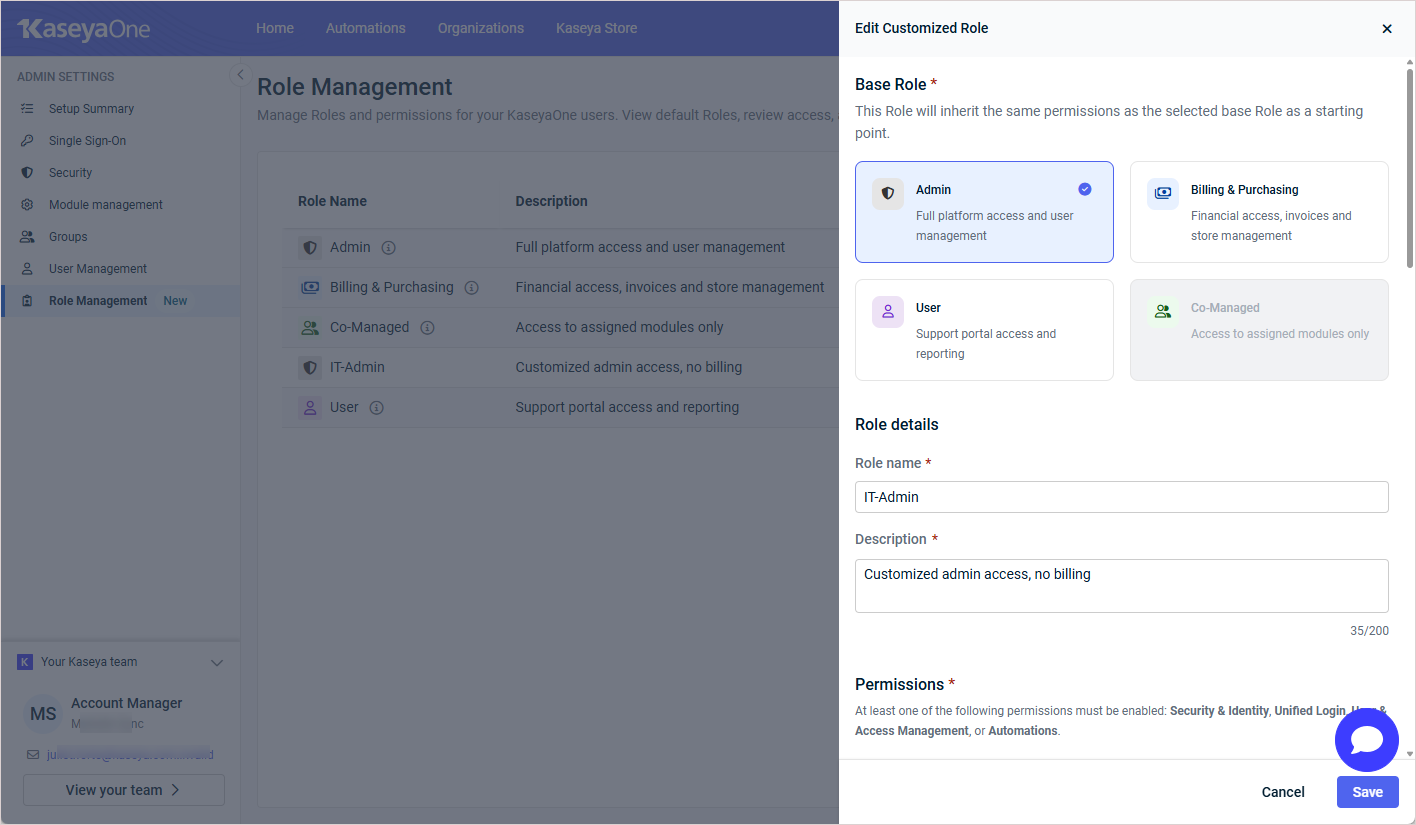
- Update the Base Role, Role name, Description, or Permissions as needed. The same validation rules that apply when creating a role apply when editing. At least one qualifying permission must remain enabled, and the configuration must differ from the base role's defaults.
- Click Save to apply your changes.
A Role updated confirmation appears at the bottom of the page, and the role list reflects your changes.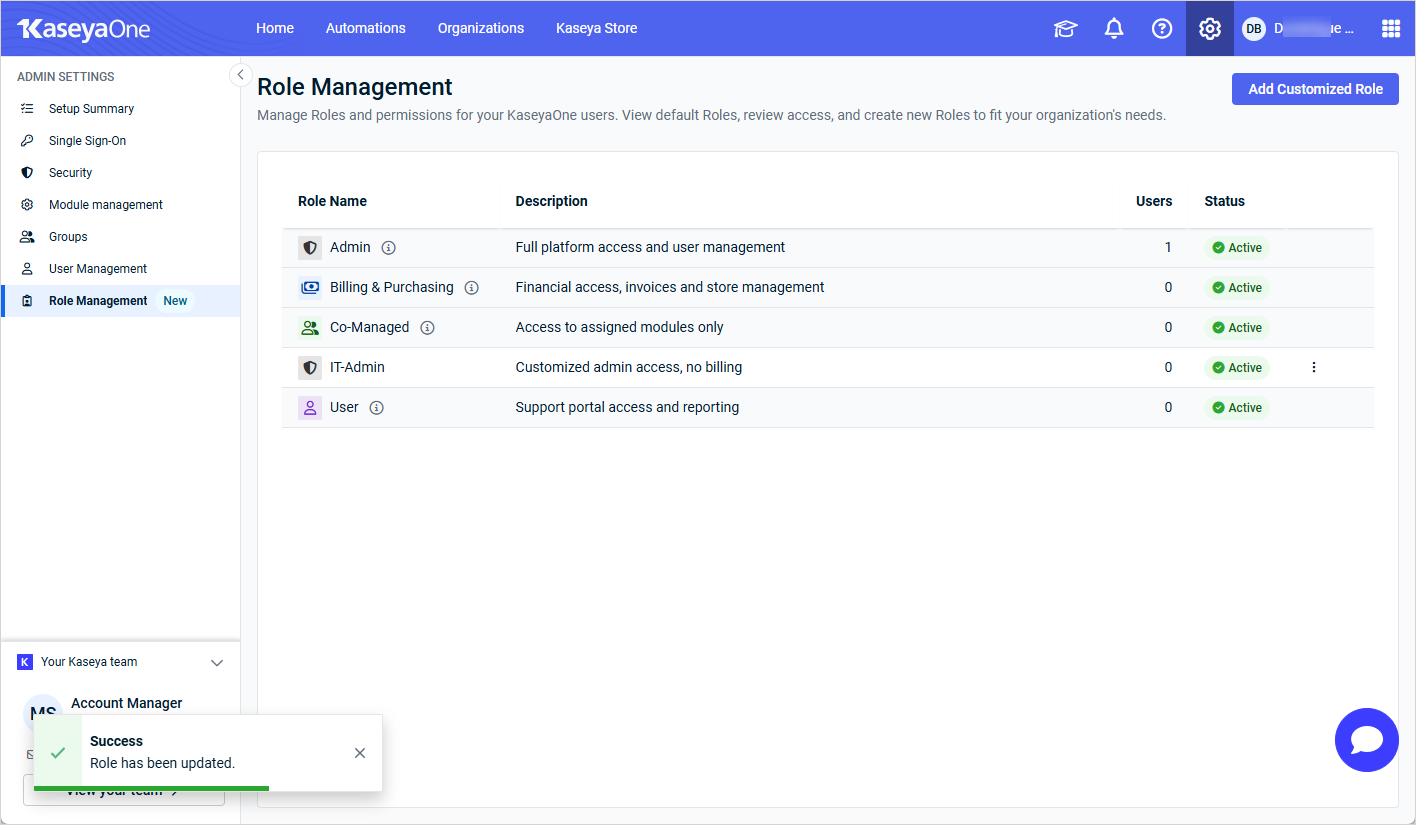
NOTE Users already assigned to the role retain access based on the updated permissions immediately after you save.
Lock or unlock a customized role
BEFORE YOU BEGIN Before locking a customized role, you must remove it from any IdP SSO configuration in Advanced Single Sign-On Settings.
Locking a role prevents it from being assigned to new users. Users already assigned to a locked role retain their current access until their role is changed. Locked roles cannot be selected when assigning roles to users.
To lock or unlock a customized role, complete the following steps:
- On the Role Management page, locate the customized role you want to lock or unlock.
- Click the More menu (vertical ellipsis) at the end of the role's row.
- Click Lock to lock an active role, or click Unlock to reactivate a locked role.
If the Lock option is disabled, the role cannot be locked as it is currently used in your IdP SSO configuration. Hover over the Lock option for details.
-
If you see This Role is the default Role for Just-in-Time user creation, select a different role for automatic user creation in Advanced Single Sign-On Settings. Refer to Configure Enable Automatic User Creation for a third-party IdP SSO in KaseyaOne.
-
If you see This Role is used in Mapping Rules configuration, select a different role for the rule in Advanced Single Sign-On Settings. Refer to Configure third-party IdP Groups Access Control in KaseyaOne.
The role's Status column updates to reflect the change.
Delete a customized role
BEFORE YOU BEGIN Before deleting a customized role, you must reassign all users currently assigned to it, and remove it from any IdP SSO configuration.
To delete a customized role, complete the following steps:
- On the Role Management page, locate the customized role you want to delete.
- Click the More menu (vertical ellipsis) at the end of the role's row, then click Delete.
If the Delete option is disabled, the role cannot be deleted as it is currently used in IdP SSO configuration or assigned to users. Hover over the Delete option for details.
-
If you see This Role is the default Role for Just-in-Time user creation, select a different role for automatic user creation in Advanced Single Sign-On Settings. Refer to Configure Enable Automatic User Creation for a third-party IdP SSO in KaseyaOne.
-
If you see This Role is used in Mapping Rules configuration, select a different role for the rule in Advanced Single Sign-On Settings. Refer to Configure third-party IdP Groups Access Control in KaseyaOne.
-
If you see This Role is assigned to users, select a different role for all users in User Management. You can see which users are assigned by clicking the role row to open the Role Details pane. To assign a different role to a user, see Edit a user.
- Confirm the deletion when prompted.
The customized role is permanently removed from the Role Management page and is no longer available for assignment.
FAQ
Can I modify or delete a system role?
No. System roles cannot be modified or deleted.
System roles (Admin, Billing and Purchasing, Co-Managed, and User) are predefined and always in Active status. If you need a variation of a system role, create a customized role using that system role as the base. Refer to Add a customized role.
NOTE The Co-Managed role cannot be customized.
What happens to users when I lock a customized role?
Users already assigned to the role keep their current access, but no new users can be assigned to the locked role.
A locked role cannot be selected in the role selection list when adding or editing users.
To remove a locked role from existing users, edit each user account and assign them a different role.
You can see which users are assigned by clicking the role row to open the Role Details pane. To assign a different role to a user, see Edit a user.
Why can't I delete a customized role?
A customized role cannot be deleted while users are assigned to it or if it is used in IdP SSO configuration.
If the Delete option is disabled, the role cannot be deleted as it is currently used in IdP SSO configuration or assigned to users. Hover over the Delete option for details.
-
If you see This Role is the default Role for Just-in-Time user creation, select a different role for automatic user creation in Advanced Single Sign-On Settings. Refer to Configure Enable Automatic User Creation for a third-party IdP SSO in KaseyaOne.
-
If you see This Role is used in Mapping Rules configuration, select a different role for the rule in Advanced Single Sign-On Settings. Refer to Configure third-party IdP Groups Access Control in KaseyaOne.
-
If you see This Role is assigned to users, select a different role for all users in User Management. You can see which users are assigned by clicking the role row to open the Role Details pane. To assign a different role to a user, see Edit a user.
Can I assign a customized role when importing users in bulk?
Yes. Customized roles can be specified in a bulk user import file.
When using the CSV bulk import feature, you can enter the name of any active customized role in the role column of your import file. The role name must match an existing active role but is not case-sensitive. If the name does not match an existing active role, the record will not be processed. Refer to Import users in bulk.
Why can't I save my customized role?
The role configuration must differ from the base role and must have at least one qualifying permission enabled.
The system prevents saving a customized role in either of the following cases:
- The role's permission configuration is identical to the selected base role. You must disable at least one permission toggle before saving.
- All permissions are disabled. At least one permission must remain enabled.
For roles based on Admin, at least one of the following groups must be enabled: Security & Identity, Unified Login, User & Access Management, or Automations. For roles based on Billing and Purchasing, all Billing & Purchases permissions other than Compare Invoices and Tax Exemption Tool must be enabled. For roles based on User, at least Support Portal or Cooper Insights must be enabled.


