Viewing your transaction history, payments, and credits
 Security and navigation
NAVIGATION Home > Subscriptions & Billing > View and Pay Invoices
PERMISSIONS Master or Billing role
This article describes how to access your transaction history, make payments, and view any credits on your account.
-
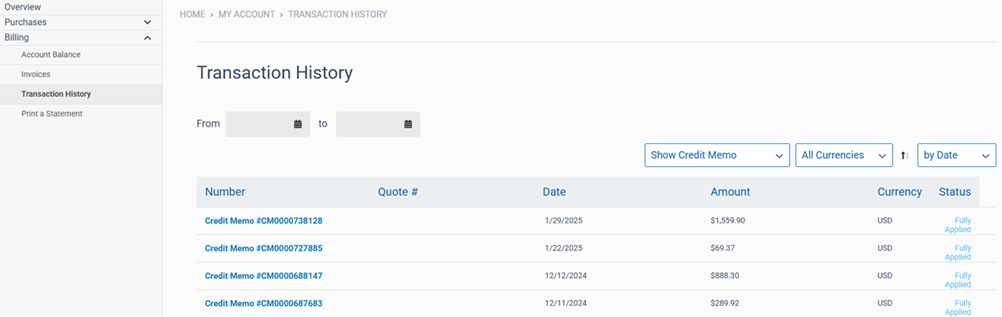
In the billing portal, on the left navigation menu, click Transaction History to see a list of all transactions on your account, such as payments, credits, and invoices.
-
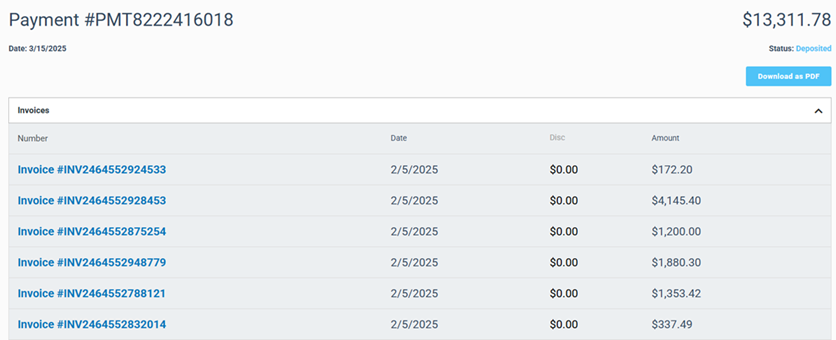
Click a transaction to view the details. For example: Clicking on a payment number will show you all the details for that payment, including the specific invoices that were paid as well as the payment method that was used. You can also download a receipt for that payment if you need it.
-
You can filter your transactions to show credit memos. The status of a credit memo will show as Fully Applied if it has already been used to pay open invoices.
-
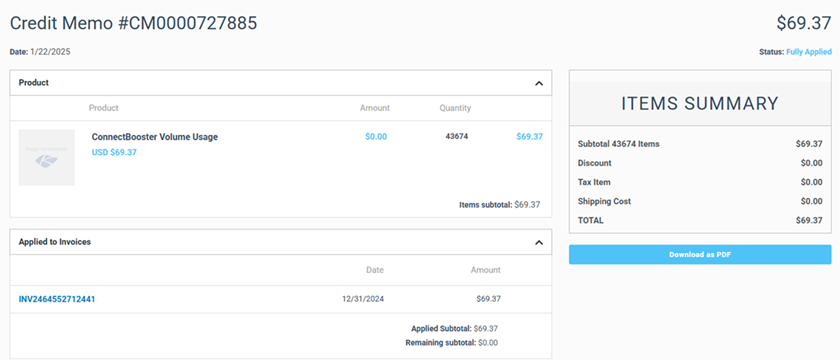
Click a credit memo number to see its details. In this example, this credit was used to pay the two invoices shown here.
-
If a credit memo has not been used or applied towards paying an invoice, the status of that credit memo will show Open.

-
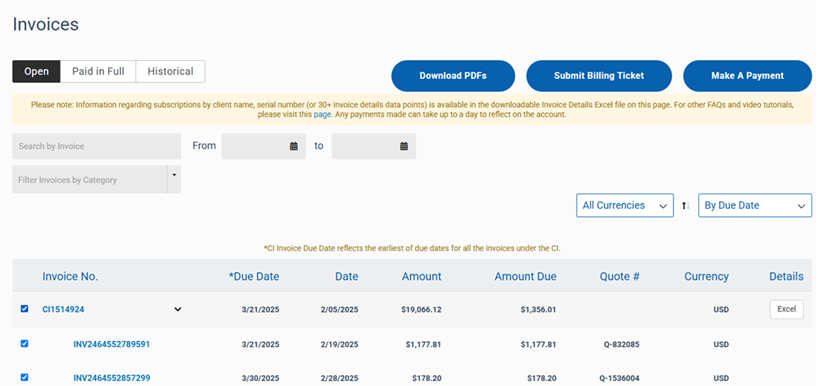
To pay an invoice, select the check box. You can select multiple invoices at the same time. Note that if you select a Consolidated invoice, all of the individual invoices that are part of it will be selected. You can customize this by removing or adding specific invoices. Once done, click Make A Payment.
-
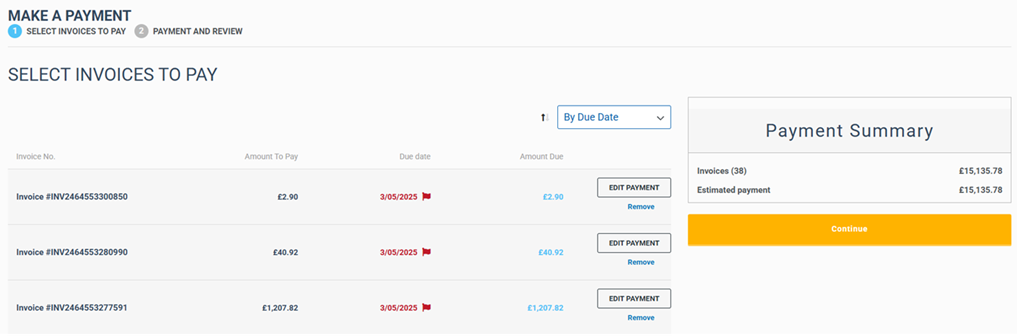
You'll see all the invoices that you selected. You'll have the option to edit the payment amount for any invoice if needed. Otherwise, click Continue.
-
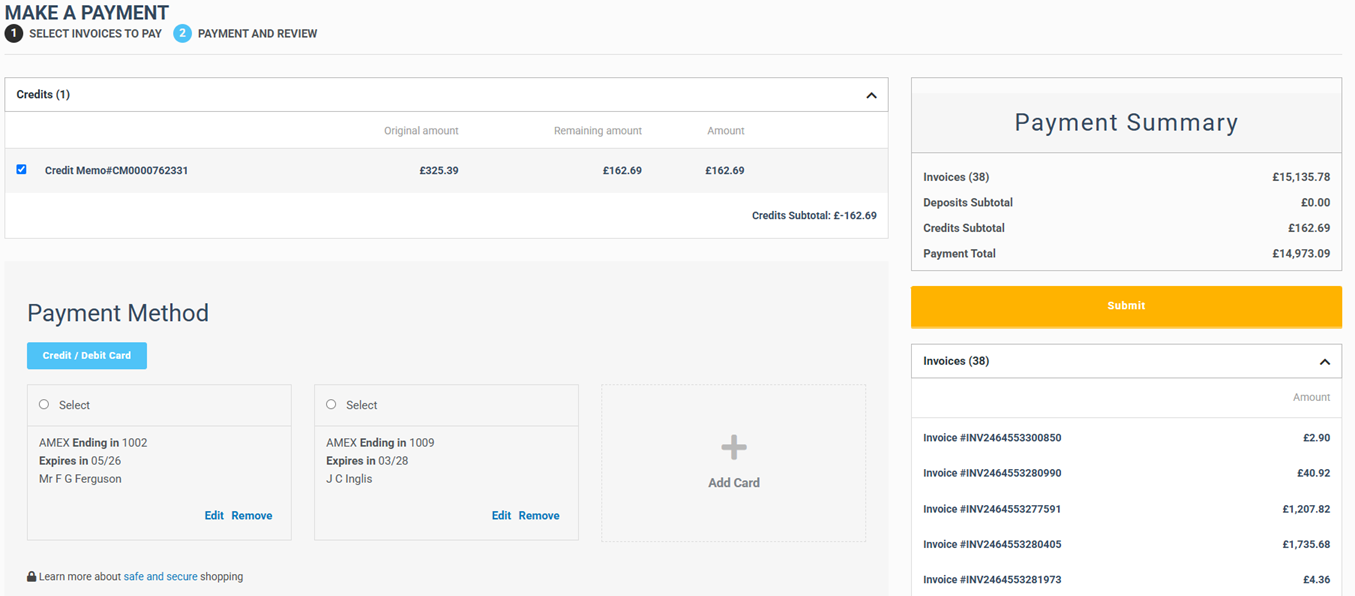
In this last step, you can select the payment method you wish to use for paying your invoices. Note that if you have any open credits on your account they will be listed here and available for you to use towards your payment amount. If you do not wish to use your credit at this time, simply uncheck the box next to it. Once you've made all your selections, click Submit to complete your payment.