Kaseya 365 Endpoint:
Onboarding without the Setup Guide page
 Security
PERMISSIONS Admin role in KaseyaOne
PERMISSIONS User accounts with the highest permission level (Superuser, Administrator, or Global Administrator) for each module in the Kaseya 365 subscription. If you need an account with a higher permission level, contact your module's administrator.
The Kaseya 365 Setup Guide is convenient, but not essential, to configuring your new subscription. If you do not see the Kaseya 365 Setup Guide page and need to get started with your subscription right away, follow the steps in this article.
Prerequisites
Before you start, confirm the following:
-
You do not see the Kaseya 365 Setup Guide in KaseyaOne's left navigation menu:
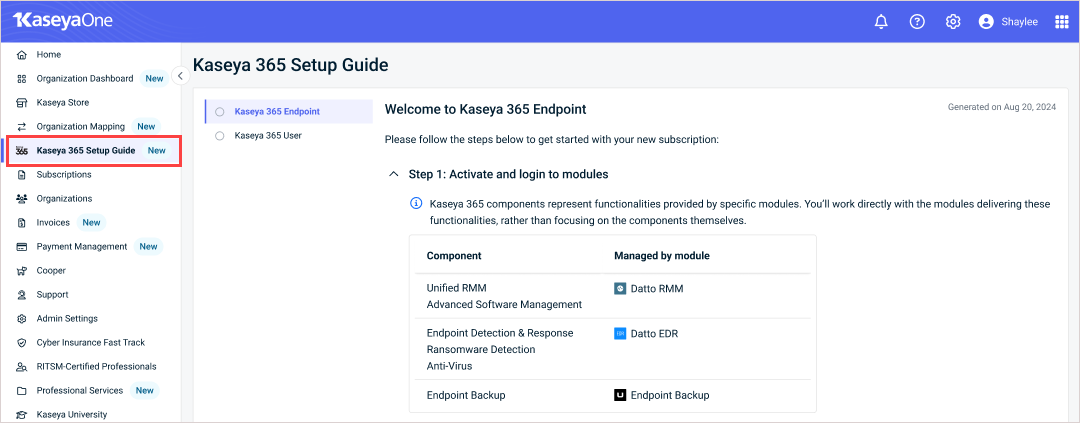
-
You are using the email address that was agreed upon as the implementation contact when signing up for Kaseya 365.
-
You are an Admin user in KaseyaOne.
-
You are an admin user with the highest permission level (Superuser, Administrator, or Global Administrator) in all the Kaseya 365 modules.
Onboarding your subscription
Your subscription includes a group of modules that power your Kaseya 365 components. These modules may have been newly provisioned for this subscription, may be existing modules that you have already been using, or a mix of both.
NOTE Your subscription includes one Unified RMM module (Datto RMM, VSA 10, or VSA 9) and one Endpoint Backup module (Datto Endpoint Backup or Unitrends Endpoint Backup).
To set up your subscription, you will perform these tasks for each new module:
-
Activate the module and enable KaseyaOne Unified Login.
-
Complete the module's onboarding tour to configure core functionality.
For your existing modules, ensure that:
-
KaseyaOne Unified Login has been enabled.
-
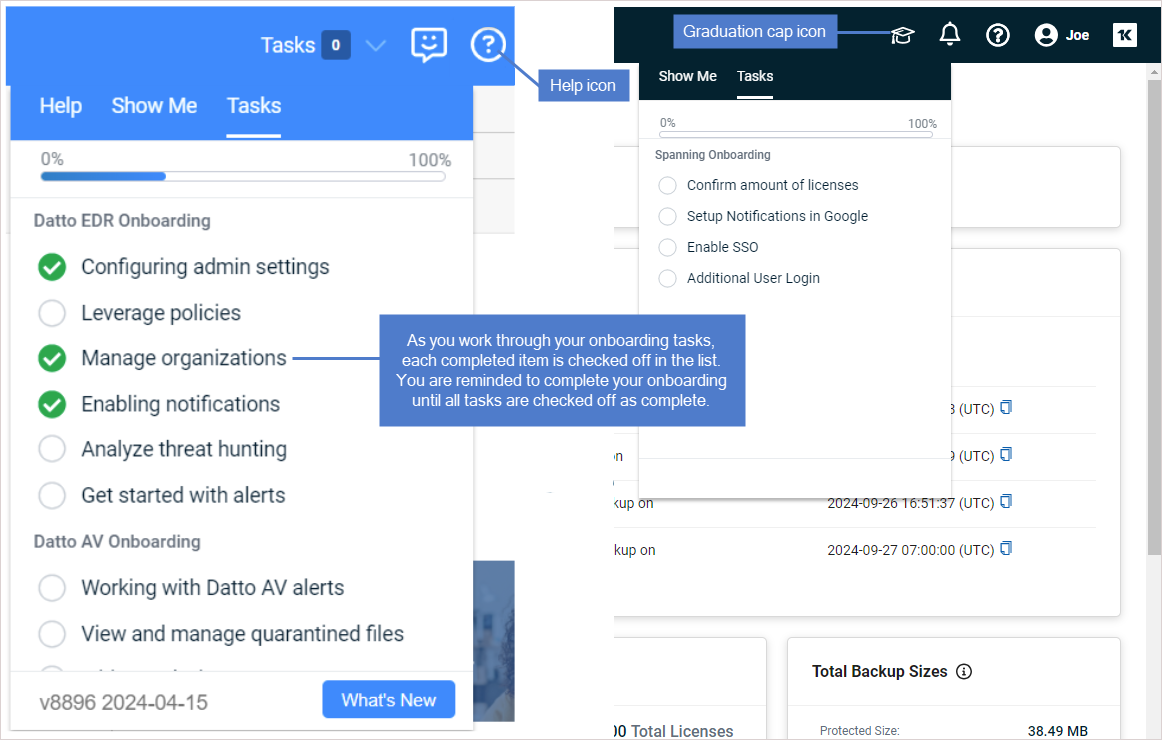
All tasks in the module's onboarding tour are marked as complete. To check this, log into the module and launch the tour by clicking the help icon or the graduation cap icon. View the Tasks tab and finish any incomplete tasks.
Step 1: Activate the module and enable Unified Login
Log in to each Kaseya 365 Endpoint module and enable Unified Login as described in the table below.
When logging in, use your implementation contact email address for the Username. For Password, use the reset password link to create a new password. Depending on the module, you may also need to enter your Company Name.
| Module | Login URL | Enable Unified Login procedure |
|---|---|---|
| Datto EDR (managed through Datto Partner Portal) | https://auth.datto.com/login Refer to Kaseya 365 Endpoint: Getting Started with Datto EDR and Datto AV for details on navigating to EDR in the Datto Partner Portal. |
Enable Log In with KaseyaOne for Datto EDR |
| Datto Endpoint Backup v1 (managed through Datto Partner Portal) | https://auth.datto.com/login Refer to Getting Started with Endpoint Backup for details on navigating to Endpoint Backup in the Datto Partner Portal. |
Enable Log In with KaseyaOne for Datto Partner Portal (for Datto Backup for Microsoft Azure, Datto BCDR, Datto Endpoint Backup V1, Datto Networking, and Datto SaaS Protection) |
| Datto RMM (managed through Datto Partner Portal) | https://auth.datto.com/login Refer to Getting Started with Datto RMM for details on navigating to Datto RMM in the Datto Partner Portal. |
Enable Log In with KaseyaOne for Datto RMM |
|
Kaseya MDR (Endpoint Pro only)
NOTE If you have an Endpoint Pro subscription with RocketCyber and have not yet logged in and enabled Unified Login, login at https://app.rocketcyber.com/users/sign_in and see Enable Log In with KaseyaOne for RocketCyber. |
https://manage.kaseyamdr.com/ | Enable Log In with KaseyaOne for Kaseya MDR |
| Unitrends Endpoint Backup (managed through Datto Partner Portal) | https://auth.datto.com/login Refer to Getting Started with Endpoint Backup for details on navigating to Endpoint Backup in the Datto Partner Portal. |
Enable Log In with KaseyaOne for Datto Partner Portal (for Datto Backup for Microsoft Azure, Datto BCDR, Datto Endpoint Backup V1, Datto Networking, and Datto SaaS Protection) |
| VSA 10 | https://yourCompany.vsax.net | Enable Log In with KaseyaOne for VSA 10 |
| VSA 9 |
Cloud URL: https://servername.kaseya.net, where servername is the name of the server where your VSA instance was deployed
On premises URL: https://servername.yourdomain.com |
Enable Log In with KaseyaOne for VSA 9 |
Step 2: Complete your module's onboarding tour
In this step you will complete the product onboarding for each module in your subscription.
Each module has in-product walkthroughs to support your self-guided onboarding. The onboarding tour launches automatically when you access the module for the first time— or access step-by-step onboarding any time from the Tasks tab of your onboarding menu. The Tasks tab is available through the help icon or the graduation cap icon, depending on the module:
Complete the product onboarding for each module in your subscription by launching the onboarding tour and working through each task.


